
Got your new Fusion Fibre router? Let’s get you connected.
Setting up your router only takes a few simple steps.
Before you get started, unpack everything from the box and check you’ve got everything listed below.
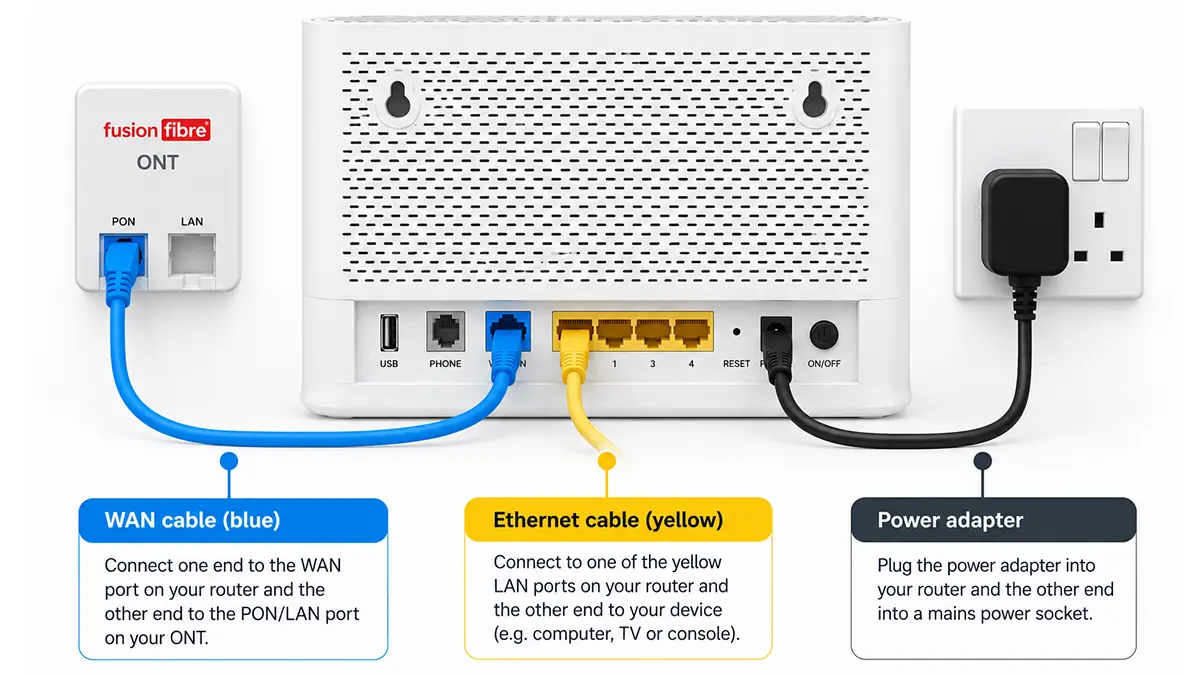
To get started, use the cable that we have provided and plug your new router into the mains power socket.
If you have an existing router, unplug it now.
If you had an old router, it would have been connected to a small white box called an ONT (Optical Network Termination) - you'll usually find it close by.
Using the blue WAN cable we've provided, plug one end into the WAN port on your new router, and the other into the PON/LAN port on the ONTO.
Simple as that!
Switch on your router at the wall and then press the power button on the device itself. You'll notice the lights on the front begin to turn on.
Give it around 5 minutes to fully boot up - then you're ready to connect!
Wired Connection (Ethernet): For the most stable and fastest experience, use the ethernet cable provided. Simply plug it directly into your device/home network.
Wireless Connection (Wi-Fi): This is the most popular way to connect. At the bottom of the new router, you'll find a label with your Wi-Fi network name and password. Open the Wi-Fi or network settings on your device, select your router name, enter the password, and you'll connect automatically.
Once your devices are connected, you’re good to go.
You can now browse, stream, work, game and do everything else you use your broadband for.
If you’ve followed the steps above but can’t get online, give your router a few minutes to finish setting itself up before trying again.
Still no luck? Take a look at our troubleshooting guides or get in touch with our Customer Service team and we’ll be happy to help.
