
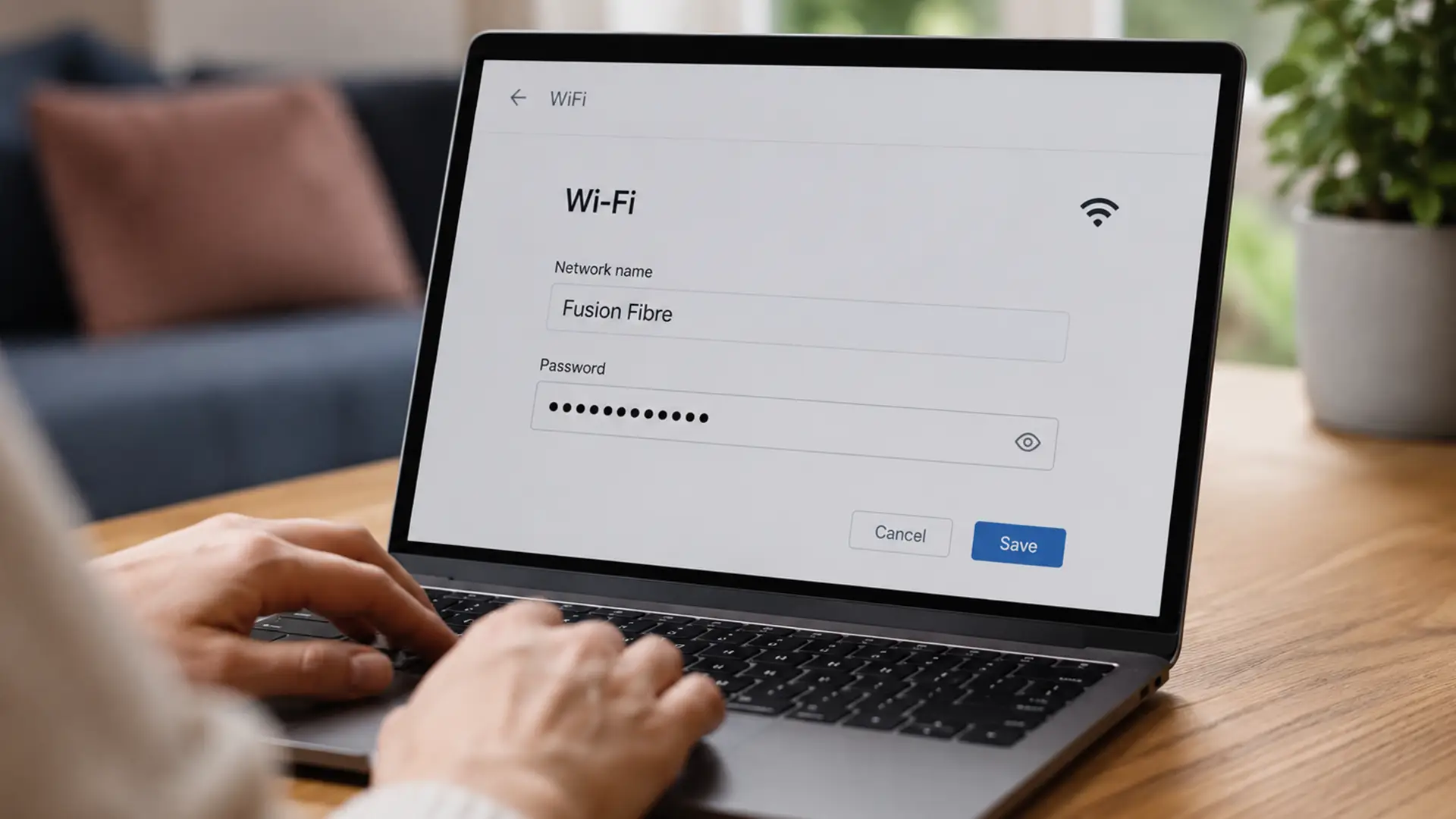
If you've ever shared your WiFi password with guests, moved into a new home or simply can't remember the last time you updated it, now's a good time to tick it off the list.
Changing your WiFi password only takes a few minutes, helps keep your home network secure and gives you the perfect excuse to retire that default WiFi name you've been ignoring for years.
If it's still the usual string of letters and numbers that came with the router, now's your chance to swap it for something a little more recognisable.
Or a little more entertaining. Your neighbours have probably set the bar already.
It only takes a few minutes, and we'll show you exactly how to do it.
Why change your WiFi password?
There are plenty of reasons to update your WiFi password, including:
- You've shared it with visitors over the years.
- You're still using the password that came with your router.
- You think someone else might have access to your network.
- You've bought a new router or switched broadband providers.
- You simply want a password that's easier for you to remember but harder for everyone else to guess.
- A fresh password means only the people you choose can connect to your network.
Before you start
You'll need:
- A device connected to your router, either by WiFi or Ethernet.
- Your router's admin username and password.
- A web browser or your router manufacturer's app, if it has one.
If you've never logged into your router before, the admin details are often printed on the router itself or included in the setup guide.
Many routers also let you access their settings through an app instead of a web browser.
How to change your WiFi password
Although every router looks a little different, the steps are broadly the same.
1. Log in to your router
Open a web browser and enter your router's address into the address bar.
This is often something like:
- 192.168.0.1
- 192.168.1.1
- routerlogin.net
- tplinkwifi.net
- dlinkrouter.local
If you're not sure, check the label underneath your router or your manufacturer's website.
2. Enter your admin details
This isn't your WiFi password.
It's the username and password used to manage your router settings. If you've changed these before, enter your own login details.
3. Find your wireless settings
Look for a menu called something like:
- Wireless
- WiFi
- Wireless Settings
- Network
- WLAN
Different manufacturers use different names, but you're looking for the section that controls your wireless network.
4. Create a new WiFi password
Find the field labelled:
- WiFi Password
- Wireless Password
- Security Key
- Passphrase
- Pre-Shared Key
Replace the existing password with your new one.
Aim for a password that's:
- At least 12 characters long.
- A mix of letters, numbers and symbols.
- Unique to your WiFi network.
Avoid names, birthdays or anything easy to guess.
5. Save your changes
Click Save, Apply or Update.
Your router may restart while the new settings are applied. Once it does, every device connected to your WiFi will disconnect until you reconnect using the new password.
How to change your WiFi name
Your WiFi name is also called an SSID.
Changing it will make your life that touch easier by making your network easier to recognise in a long list of neighbouring connections.
While you're already in your router settings:
- Open the Wireless or WiFi section.
- Find the Network Name or SSID field.
- Enter your new name.
- Save the changes.
After a restart, your new network name will appear in the list of available WiFi networks.
Choosing a good WiFi name
A good WiFi name should be:
- Easy for your household to recognise.
- Different from nearby networks.
- Free from personal information like your surname or house number.
Go funny, go clever or keep it straightforward. Just leave out anything that gives away where you live or who you are.
You'll need to reconnect your devices
Changing your password signs every wireless device out of your network.
That means you'll need to reconnect things like:
- Phones
- Laptops
- Tablets
- Smart TVs
- Games consoles
- Smart speakers
- Security cameras
- Smart home devices
Use your new password when prompted, and they'll be back online.
Can't log in to your router?
If you're having trouble accessing your router settings, try these checks first:
- Make sure you're connected to your home network.
- Double-check the router address.
- Confirm you're using the admin password rather than the WiFi password.
- Restart your router and try again.
If you've forgotten the administrator password, you may need to reset the router to its factory settings.
Keep in mind this removes any custom settings, including your WiFi name and password.
How often should you change your WiFi password?
There's no need to change it every month.
Updating your password makes sense if:
- You think someone else knows it.
- You've shared it with lots of guests.
- You notice unfamiliar devices connected to your network.
- You've recently moved home.
- You've replaced your router.
Otherwise, using a strong, unique password is far more important than changing it on a schedule.
Frequently Asked Questions
Can I change my WiFi password from my phone?
Yes. Many modern routers let you manage your settings through a mobile app. You can also log into your router using your phone's web browser while connected to your home network.
Will changing my WiFi password disconnect everyone?
Yes. Every wireless device will disconnect until the new password is entered.
Is my router password the same as my WiFi password?
Usually not.
Your router's admin password lets you change settings. Your WiFi password is the one everyone enters to connect to your network.
Does changing my WiFi name improve speed?
No. Renaming your network doesn't affect performance. It simply changes how your network appears on your devices.
Keep your home network secure
Changing your WiFi password is one of the quickest ways to take control of who can access your home network.
Pair it with a strong password, a recognisable network name and up-to-date router software, and you'll be giving your broadband the best chance to perform at its best.
