
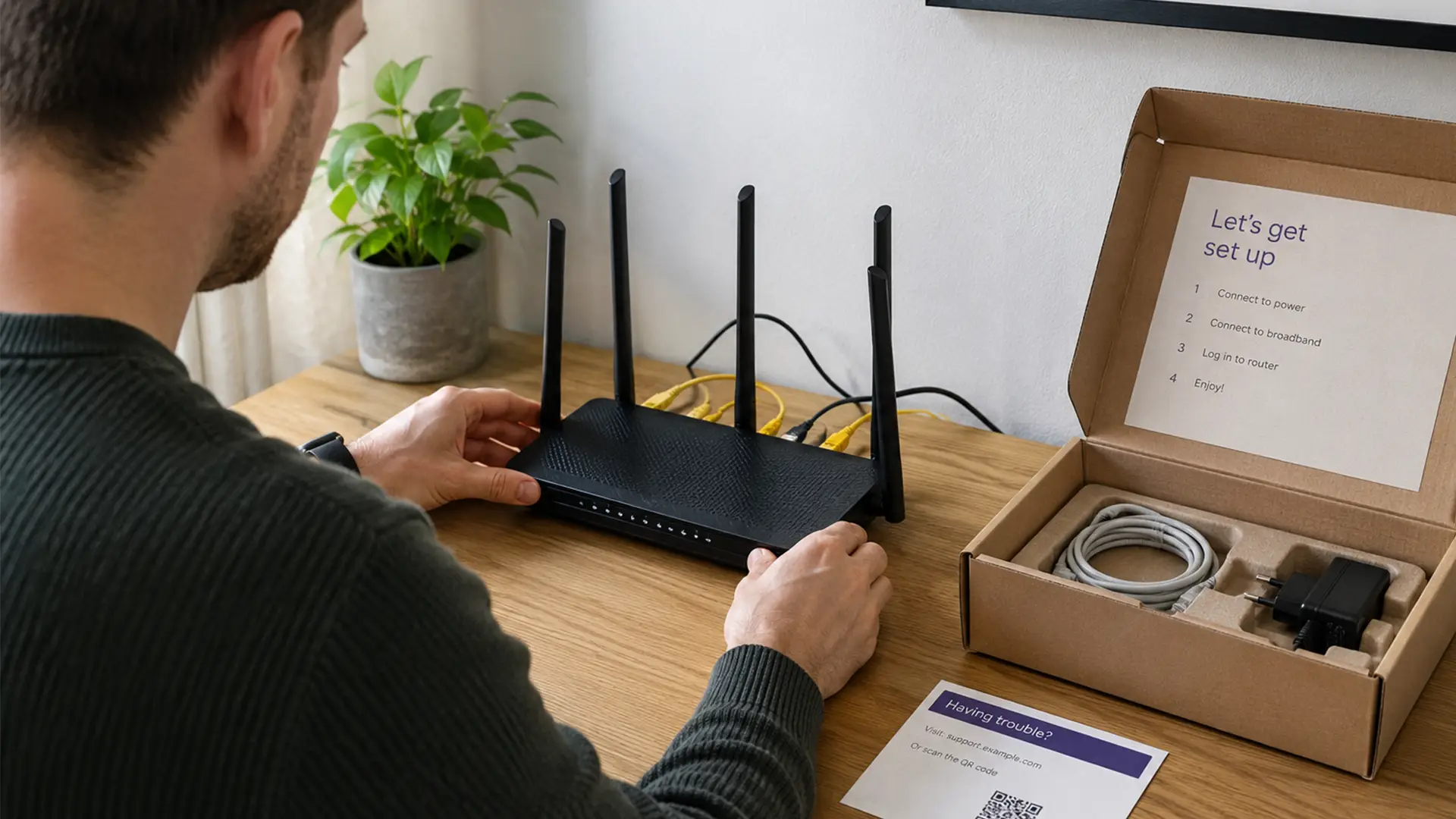
New router sitting in the box?
Don't panic.
Despite the blinking lights and alarming number of acronyms, setting up a router is usually much easier than people expect.
Whether you're replacing an old router, moving home or connecting a brand-new broadband service, getting everything up and running can often take less than 15 minutes.
Here's how to set up a router step by step.
What You'll Need Before You Start
A quick check before you begin can save a lot of unnecessary unplugging and replugging later.
You'll need:
- Your router
- Power cable
- Ethernet cable
- Broadband modem (if your provider uses one)
- Wi-Fi network name and password (usually printed on the router)
Tea and biscuits are optional. Patience helps.
Step 1: Find the Best Place for Your Router
Router placement has a bigger impact on Wi-Fi performance than most people realise.
For the strongest signal:
- Place it in a central location
- Keep it off the floor
- Avoid cupboards and enclosed spaces
- Keep it away from large metal objects
- Position it away from microwaves and other electronics where possible
If your router is hidden behind furniture in the far corner of the house, your Wi-Fi will have a much harder job reaching every room.
For tips on finding the best spot for your router, check out our guide to router placement.
Step 2: Connect Your Router to the Internet
The exact setup depends on your broadband provider and equipment.
In most homes, you'll either:
- Connect Directly to a Broadband Socket: Some routers plug straight into your broadband wall socket using the supplied cable.
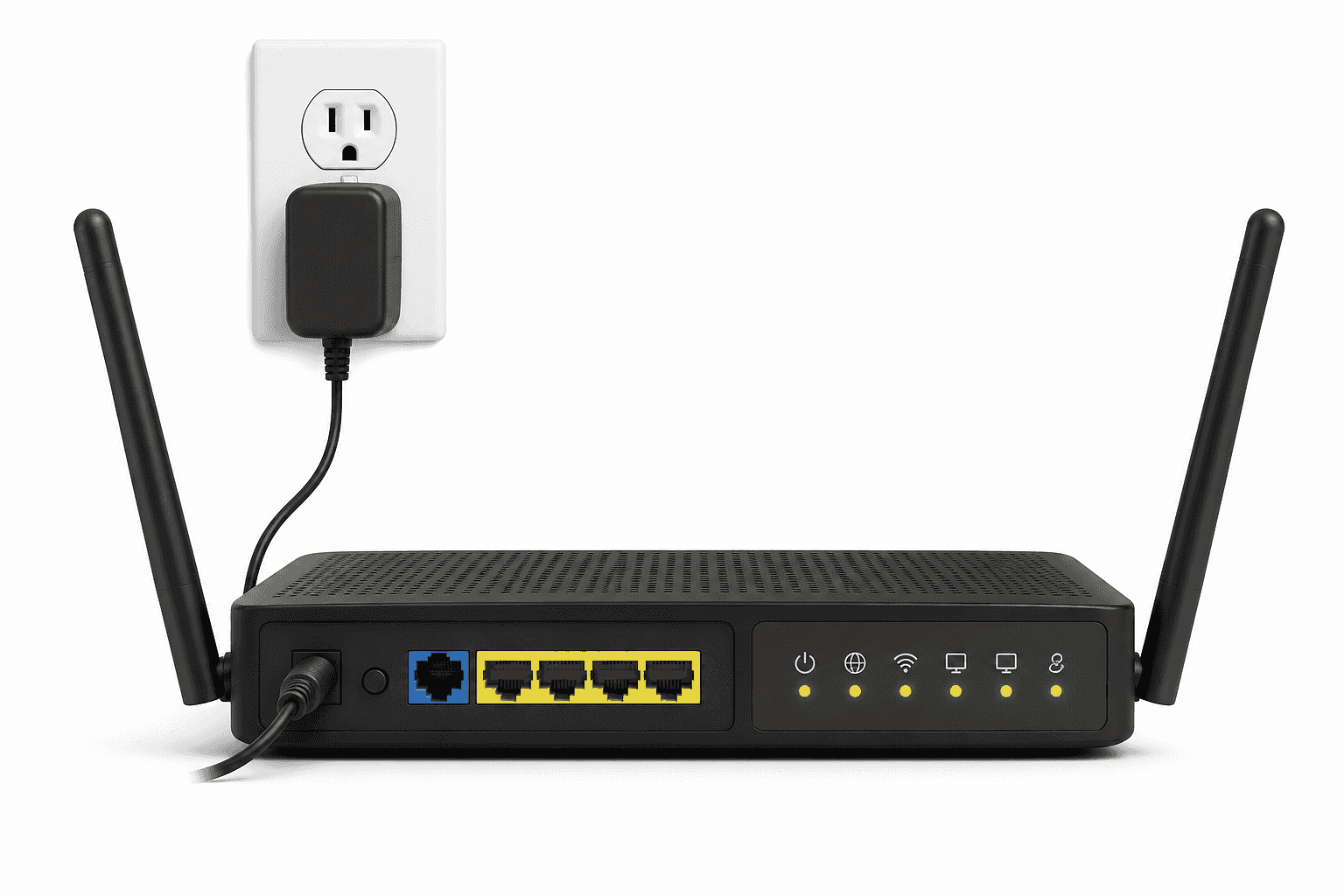
- Connect Through a Modem: If you have a separate modem, connect an Ethernet cable from the modem to your router's WAN or Internet port.
This port is usually highlighted in a different colour from the other Ethernet ports.
Once connected, switch on both devices.
Step 3: Power Up the Router
Connect the power cable and turn the router on.
Most routers take a few minutes to start properly.
You'll usually see several indicator lights begin flashing before settling into a steady pattern.
If you're unsure what the lights mean, check the manufacturer's guide.
Step 4: Connect a Device
Now it's time to connect.
You can usually do this in one of two ways:
Option 1: Connect via Wi-Fi
Look for the Wi-Fi network name printed on the router label.
Select the network on your phone, tablet or computer and enter the password provided.
Option 2: Connect via Ethernet
For the most stable connection during setup, plug a computer directly into the router using an Ethernet cable.
Both methods work. Ethernet simply removes any Wi-Fi variables while you're getting started.
Step 5: Access the Router Settings
Most routers have a setup page where you can customise your network.
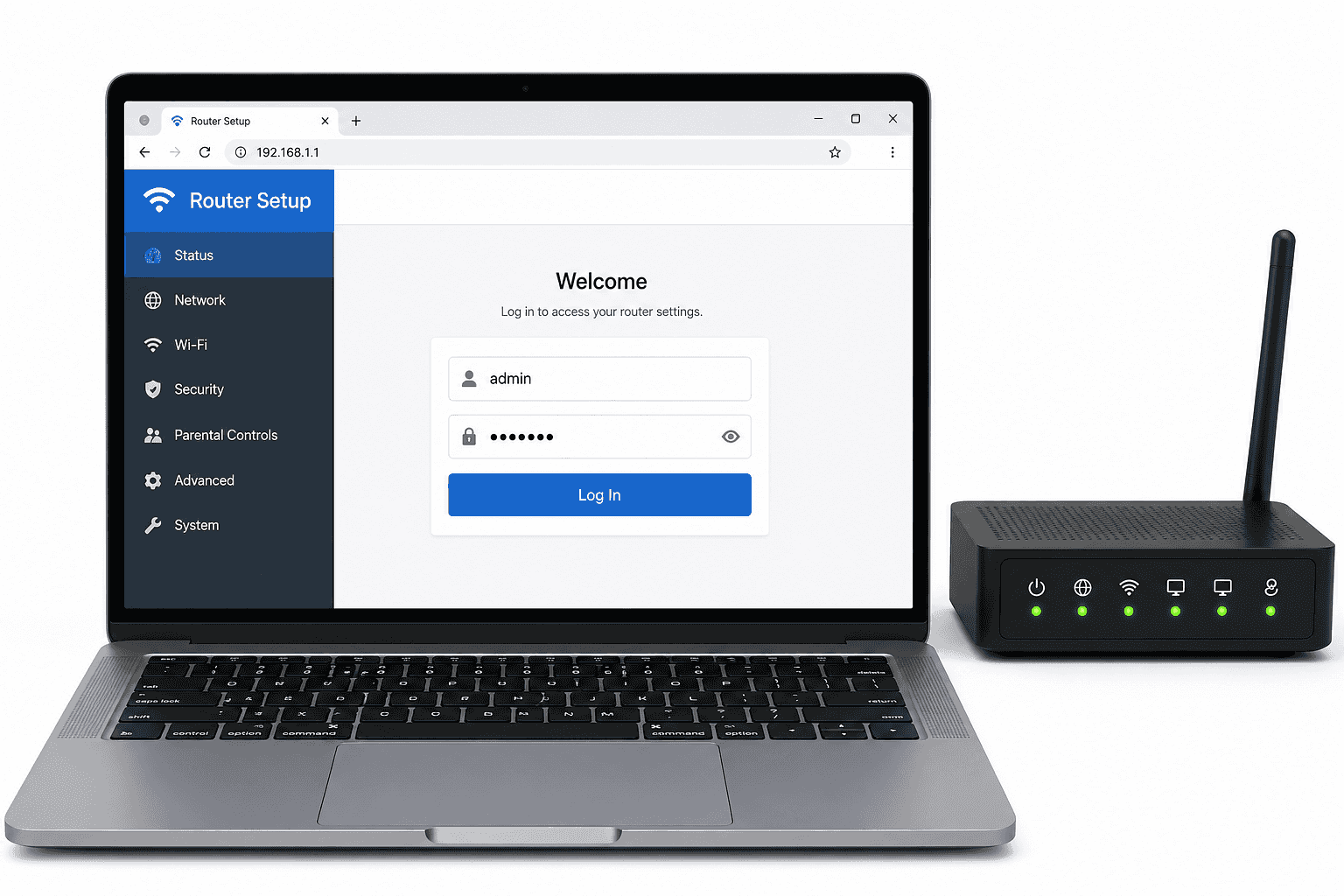
Open a web browser and enter the router's address.
Common examples include:
- 192.168.0.1
- 192.168.1.1
You'll then be prompted to log in.
The default username and password are often printed on the router itself or included in the documentation.
Step 6: Change the Default Login Details
Default passwords are widely known and can leave your network vulnerable.
Create:
- A strong router administrator password
- A unique login if your router allows it
Use a password that's difficult to guess and avoid using personal information.
Step 7: Set Up Your Wi-Fi Network
You'll usually have the option to customise:
Network Name (SSID)
This is the Wi-Fi name you'll see when connecting devices.
You can keep the default name or create something more memorable.
Just maybe avoid broadcasting your full address to the neighbourhood.
Wi-Fi Password
Choose a strong password that combines:
- Uppercase letters
- Lowercase letters
- Numbers
- Symbols
A strong password helps prevent unauthorised access and keeps your network secure.
Step 8: Update the Router Firmware
Manufacturers release updates to:
- Improve performance
- Fix bugs
- Patch security issues
Most modern routers can check for updates automatically through their settings page.
If an update is available, install it before moving on.
Step 9: Connect Your Devices
Now for the fun part.
Once everything is configured, connect your:
- Smartphones
- Laptops
- Tablets
- Smart TVs
- Gaming consoles
- Smart home devices
If you've changed the Wi-Fi name or password, you'll need to reconnect any devices that previously used the old network.
Common Router Setup Problems
No Internet Connection
Check:
- All cables are securely connected
- The modem is powered on
- Broadband service is active
- The WAN cable is connected correctly
Wi-Fi Signal Is Weak
Try:
- Moving the router to a more central location
- Raising it off the floor
- Removing nearby obstructions
Can't Access Router Settings
Confirm you're entering the correct router address and are connected to the network.
A router restart often resolves temporary access issues.
How Long Does Router Setup Take?
For most households, setting up a router takes between 10 and 20 minutes.
The process can take longer if:
- Firmware updates are required
- Multiple devices need reconnecting
- Broadband activation is still pending
Frequently Asked Questions
Can I Set Up a Router Without a Computer?
Yep. Most modern routers can be configured using a smartphone, tablet or dedicated mobile app.
Do I Need a Modem and a Router?
Not always.
Some broadband providers supply a single device that combines both functions.
Others provide separate equipment.
Should I Change the Default Wi-Fi Password?
Yes. It only takes a minute to set a unique password, but it can go a long way towards protecting your network and the devices connected to it.
Where Should I Put My Router?
A central, open location generally provides the best Wi-Fi coverage throughout your home.
If in doubt, our guide to router placement has you covered.
