
When your Wi-Fi starts dragging its feet, most people assume they need faster broadband.
Not always.
If your Wi-Fi feels slower or less reliable than usual, a busy Wi-Fi channel could be part of the reason.
When lots of nearby networks are competing for the same wireless space, interference can get in the way.
Changing your Wi-Fi channel helps your router move to a less crowded frequency, which can improve performance across your devices.
And unlike many Wi-Fi fixes, this one won't take up your afternoon.
Here's how to do it.
What Is a Wi-Fi Channel?
Your router doesn't have a direct line to your devices. It communicates over a Wi-Fi channel.
When nearby networks pile onto the same channel, things can get crowded.
The result is more interference and a connection that doesn't always perform as well as you'd like.
Moving to a different Wi-Fi channel can help give your network a clearer path.
Why Change Your Wi-Fi Channel?
Sometimes, better Wi-Fi isn't about getting more. It's about dealing with less.
Switching to a less congested channel can help reduce interference from nearby networks and give your Wi-Fi a better chance to perform at its best.
Depending on what's causing the issue, you may notice:
- Faster Wi-Fi speeds
- A more stable connection
- Smoother video calls
- Less lag when gaming
- More reliable streaming
- Better performance in flats, apartments and other busy areas
It's a simple adjustment, but sometimes simple is exactly what's needed.
How Do I Know If My Wi-Fi Channel Is Busy?
Paying for fast broadband but not seeing the performance you'd expect?
The issue isn't always the connection coming into your home. Sometimes it's the Wi-Fi inside it.
A busy Wi-Fi channel can contribute to:
- Inconsistent Wi-Fi speeds
- More buffering and interruptions
- Video calls that freeze or stutter
- Slower device connections
- A less reliable experience overall
How to Check Your Current Wi-Fi Channel
Before changing anything, it's worth seeing which channel your network is already using.
On Windows
- Open Command Prompt.
- Type:
netsh wlan show interfaces
- Press Enter.
- Look for the channel number in the results.
On Mac
- Hold the Option key.
- Click the Wi-Fi icon in the menu bar.
- View your network information, including the channel.
Using a Wi-Fi Analyser App
Wi-Fi analyser apps can show:
- Your current Wi-Fi channel
- Nearby wireless networks
- Which channels are busiest
- Less crowded alternatives
If you're serious about finding the best channel, these tools are often the quickest route.
How to Change Your Wi-Fi Channel
The menus may look a little different depending on your router, but the basic process is much the same.
Step 1: Log Into Your Router
Open a web browser and enter your router's IP address.
Common addresses include:
- 192.168.0.1
- 192.168.1.1
- 192.168.1.254
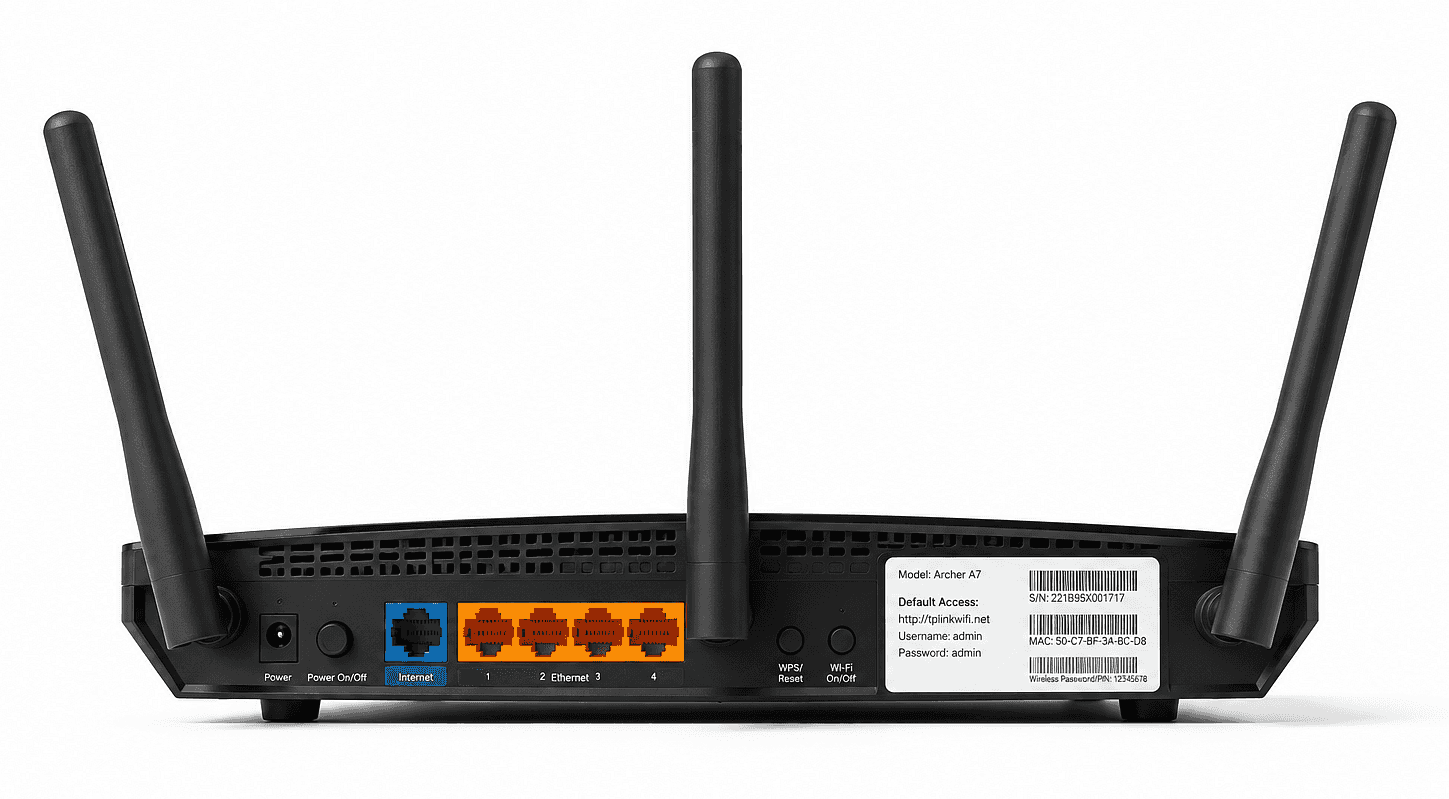
You can usually find the correct address on a sticker attached to the router.
Step 2: Sign In
Enter your router username and password.
If you've never changed them, they're often printed on the router itself.
Step 3: Open Wireless Settings
Look for a menu called:
- Wireless Settings
- Wi-Fi Settings
- Wireless Network
- Advanced Settings
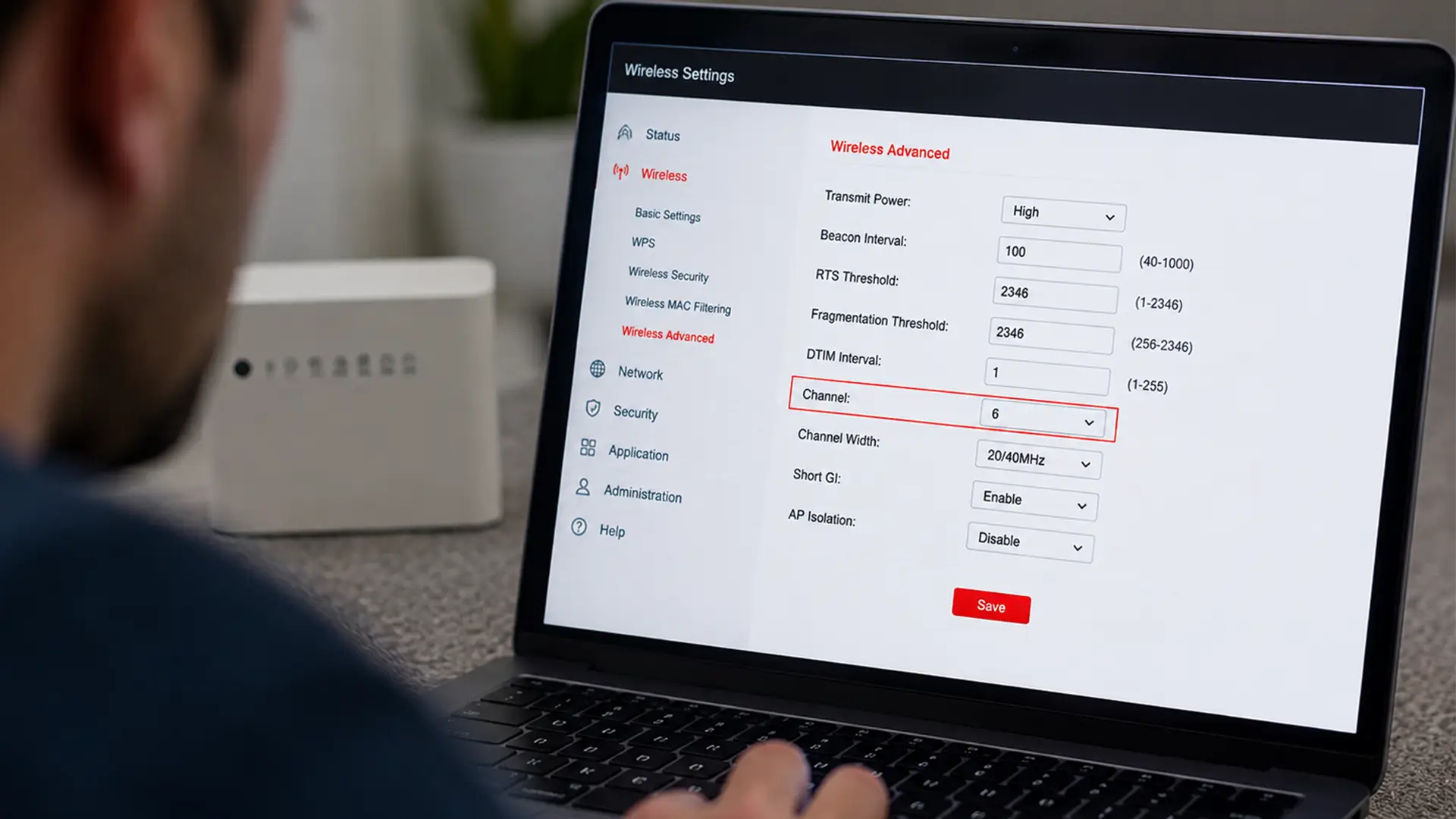
Step 4: Find the Channel Setting
Look for a setting labelled:
- Channel
- Wireless Channel
- Wi-Fi Channel
Many routers will be set to Auto by default.
Step 5: Choose a New Channel
Select a different channel and save your changes.
Your Wi-Fi may disconnect briefly while the changes are applied. It should be back up and running within moments.
Which Wi-Fi Channel Should I Use?
The best Wi-Fi channel depends on what's happening around your home.
A channel that's quiet for one household could be crowded for another.
That said, there are some good starting points.
Best Channels for 2.4GHz Wi-Fi
For 2.4GHz networks, channels 1, 6 and 11 are usually recommended.
These channels don't overlap with each other, which helps reduce interference.
If you're changing channels manually, start here.
Best Channels for 5GHz Wi-Fi
The 5GHz band offers many more channels and generally experiences less congestion.
Most modern routers handle 5GHz channel selection automatically, but a Wi-Fi analyser app can help identify the least crowded option if you're making manual adjustments.
Should I Leave My Router on Auto?
For most people, Auto works just fine.
Modern routers are much better at managing wireless channels than older models and can often select suitable channels automatically.
If your Wi-Fi is working well, there's usually no need to change anything. If it ain’t broke and all that.
If you're troubleshooting performance issues, manually selecting a channel can be worth trying.
Best of all, it only takes a few minutes to find out if it helps.
Changing Channels on 2.4GHz and 5GHz Networks
The best channel for your router depends partly on which Wi-Fi band you're using.
The 2.4GHz band has fewer channels to choose from, while 5GHz offers a wider selection and is often less prone to interference.
Want to learn more about each band? Our guides to 2.4GHz Wi-Fi and 5GHz Wi-Fi explain how they work, when to use them and how they can affect performance.
Still Having Wi-Fi Problems?
Changing your Wi-Fi channel can help reduce interference, but it isn't the only factor that affects wireless performance.
If you're still having issues, these guides may help:
- How to Boost Wi-Fi Signal Through Walls
- Where to Position Your Router for the Best Signal
- What Is Wi-Fi 6 and Is It Worth Upgrading?
Sometimes the solution is a less crowded channel.
Sometimes it's improving signal strength, router placement or the equipment you're using.
Final Thoughts
Before you start shopping for a new router or upgrading your broadband, it's worth checking your Wi-Fi channel.
A quick tweak in your router settings could be all that's standing between you and a more reliable connection.
Frequently Asked Questions
Does Changing Wi-Fi Channel Improve Internet Speed?
Sometimes.
Changing your Wi-Fi channel won't make your broadband package any faster.
But if your router is dealing with lots of interference from nearby networks, switching to a less crowded channel could help you get more from the connection you already have.
Which Wi-Fi Channel is Fastest?
There's no single channel that's best for everyone.
The fastest Wi-Fi channel is usually the one with the least competition from nearby networks.
What's working brilliantly for your neighbour could be causing problems for you, which is why checking local congestion is often more useful than picking a channel at random.
How Often Should I Change my Wi-Fi Channel?
Probably less often than you'd think.
Many people never need to change their Wi-Fi channel at all.
If your connection suddenly becomes less reliable, speeds start fluctuating or buffering becomes more common, it's worth checking whether your current channel has become crowded.
Is Auto Channel Selection Good Enough?
For most homes, yes.
Modern routers are pretty good at choosing suitable channels on their own.
If your Wi-Fi is working well, there's usually no need to get involved. If things aren't running as smoothly as you'd like, manually choosing a channel is a simple troubleshooting step that's worth trying.
Will Changing my Wi-Fi Channel Disconnect My Devices?
Briefly, yes.
Your router will usually restart the wireless connection while it applies the new settings.
Don't panic if your Wi-Fi disappears for a few seconds. Your devices should reconnect automatically once everything is back up and running.
