

A single click can send data across cities, countries and countless networks before a webpage appears on your screen.
All before you've finished reaching for your tea.
Traceroute pulls back the curtain on that journey, revealing every hop along the way and helping uncover where problems occur.
Traceroute is a network diagnostic tool that shows the path data takes from your device to a destination on the internet.
Instead of simply telling you whether a website or server is reachable, traceroute maps every stop along the way.
For network engineers, it's a troubleshooting tool. For everyone else, it's a useful way to understand why a connection might be slow, unreliable, or failing altogether.
Let's get into it.
What Is Traceroute?
Traceroute is a command-line utility that tracks the route internet traffic follows between two points.
When data travels across the internet, it rarely takes a direct route. Instead, it hops between multiple routers and networks before reaching its destination.
Each of these stops is called a hop.
Traceroute identifies:
- Every hop between source and destination
- The time taken to reach each hop
- Where delays are occurring
- Where connections may be failing
Behind every webpage is a chain of routers, networks and connections. Traceroute shows you all of them.
How Does Traceroute Work?
Traceroute works by sending a series of test packets across the network.
These packets are deliberately configured to expire after travelling a certain number of hops.
The process works like this:
- A packet is sent with a hop limit of one.
- The first router receives it and returns a response.
- Another packet is sent with a hop limit of two.
- The second router responds.
- The process continues until the destination is reached.
By collecting responses and hops from every router along the route, traceroute builds a complete picture of the journey.
What Is a Hop?
A hop is a point where traffic moves from one router to another.
A typical traceroute may include:
- Your home router
- Your ISP's network
- Regional internet exchanges
- Backbone providers
- Cloud infrastructure networks
- The destination server
A nearby website might require 10-15 hops.
A server located on another continent may involve 20-30 hops or more.
Why Is Traceroute Useful?
Traceroute helps identify where network issues are occurring.
Diagnosing Slow Connections
If one hop suddenly shows a large increase in response time, it may indicate congestion or routing issues.
Finding Network Failures
When data hits a dead end, traceroute helps you find it.
Troubleshooting Website Access Problems
When your connection hits a roadblock, traceroute helps you see exactly where it is:
- On your network
- With your ISP
- Somewhere on the wider internet
- At the destination server
Investigating Application Performance
Cloud applications, video calls, online games and VoIP services all rely on data travelling through multiple networks before reaching its destination.
Traceroute provides visibility into that journey, helping identify where delays or connection problems occur.
How to Run Traceroute
- On Windows: Open Command Prompt and run: tracert google.com
- On macOS: Open Terminal and run: traceroute google.com
- On Linux: Open Terminal and run: traceroute google.com. Replace "google.com" with any hostname or IP address you want to test.
How to Read Traceroute Results
Run a traceroute and you'll see something like this:
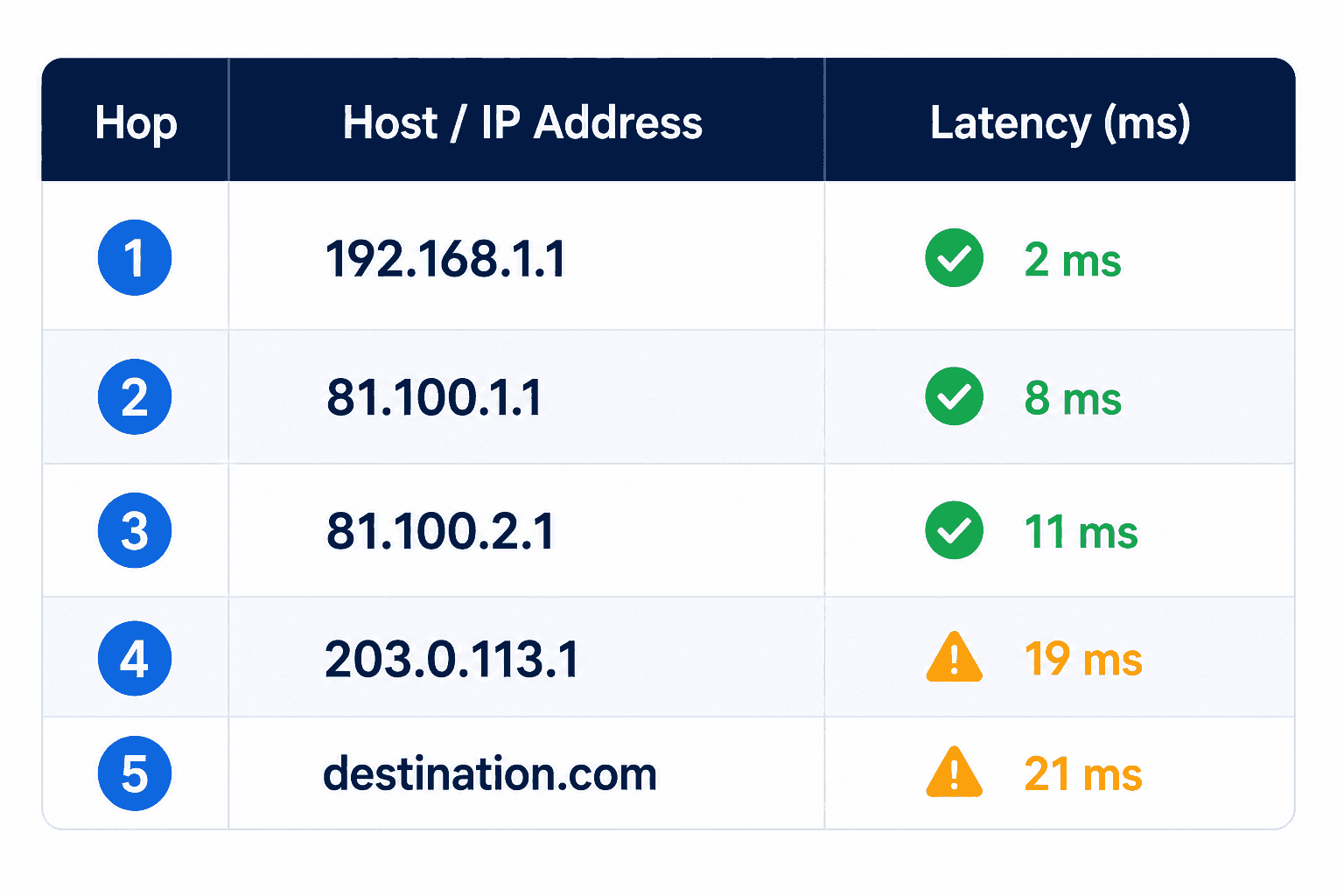
Every line in a traceroute represents another hop your data makes before reaching its destination.
For each hop, you'll see three important details:
- Hop number - The order of that stop along the route.
- Hostname or IP address - The router or server forwarding your data.
- Response time - How long it took for that hop to respond, measured in milliseconds (ms).
Looking at these together makes it much easier to see where delays or connection issues might be creeping in.
What Do Asterisks (*) Mean in Traceroute?
Sometimes you'll see output like this:
8 * * *
This doesn't always mean something is broken.
Many routers are configured to:
- Ignore traceroute requests
- Prioritise normal traffic
- Block diagnostic responses
If the traceroute continues successfully after the asterisks, there's often no issue.
However, repeated timeouts followed by a failed route may indicate:
- Firewall restrictions
- Routing problems
- Network outages
- Device failures
Traceroute vs Ping
Ping checks whether a destination can be reached and measures how long it takes for data to make the round trip, while traceroute maps the path your data takes across the network, showing each stop along the way.
In short, ping tells you how quickly a destination responds, whereas traceroute shows you how it got there.
If a website feels slow, ping tells you there's a problem. Traceroute helps identify where the problem exists.
What Causes High Latency?
Several factors can increase response times.
- Distance: The farther traffic has to travel, the longer it takes.
- Network Congestion: Busy routers and overloaded links can introduce delays.
- Poor Routing: Traffic sometimes follows inefficient paths between networks.
- Wireless Connections: Wi-Fi interference and signal issues can affect latency.
- ISP Issues: Performance problems within an internet provider's network can impact response times.
Common Traceroute Misconceptions
- A Slow Hop Doesn't Always Mean a Problem: Some routers deprioritise traceroute traffic. A hop may appear slow while still forwarding actual traffic normally.
- More Hops Aren't Necessarily Bad: A route with 20 fast hops can perform better than a route with 10 congested ones.
- Timeouts Don't Always Indicate Failure: Many network devices intentionally ignore traceroute requests for security reasons. The key is whether subsequent hops continue responding.
When Should You Use Traceroute?
Traceroute is worth running when:
- A website won't load
- Internet speeds feel unusually slow
- Online games are lagging
- Video calls keep dropping
- Cloud applications are performing poorly
- You're investigating network outages
It helps narrow down the problem without the usual trial and error.
Final Thoughts
Traceroute shows what happens between clicking a website and seeing it load.
By revealing every hop along the route, it can help uncover delays, routing problems and connectivity issues that would otherwise stay hidden.
Whether you're tracking down a problem or simply satisfying your curiosity, it's one of the easiest ways to see how the internet gets from A to B.
Frequently Asked Questions
Is Traceroute Safe to Use?
Yes! Traceroute is a standard diagnostic tool that's used every day by network administrators and IT teams around the world.
Does Traceroute Work on Every Website?
Not every website, no. Some networks block or limit traceroute traffic.
What's the Difference between Traceroute and Tracert?
They're more or less the same tool.
- tracert is used on Windows.
- traceroute is used on Linux and macOS.
Can Traceroute Identify Internet Outages?
Yep, most of the time. It can help pinpoint where traffic stops progressing and narrow down the source of an outage.
