
Most internet problems are easy to spot.
No connection? That's a problem. A router flashing angry red lights? Also a problem.
Ping spikes aren't nearly as helpful. Your broadband looks fine. Your Wi-Fi looks fine. Every speed test insists everything is working exactly as it should.
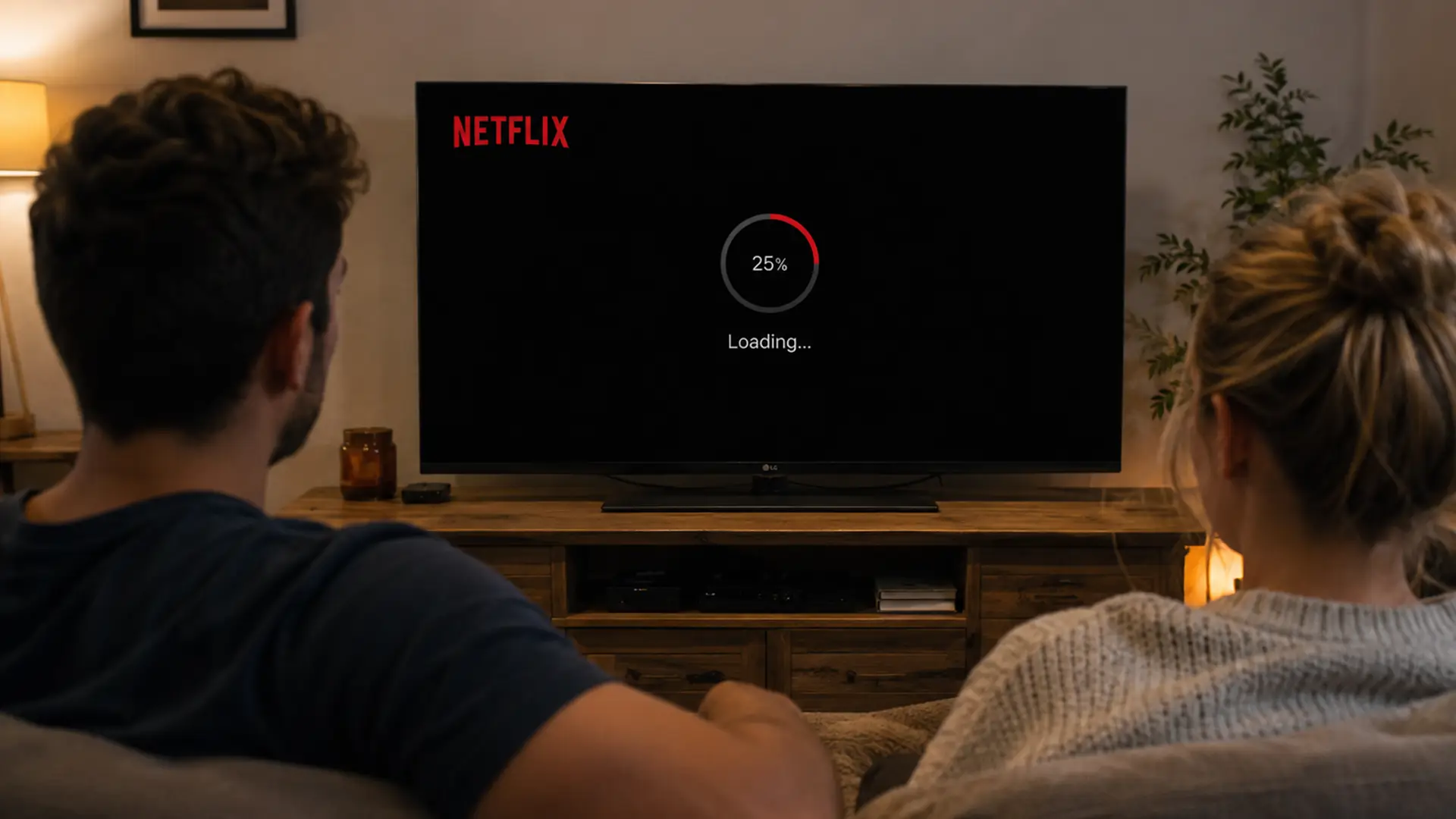
Then your game freezes. Your stream drops to potato quality for a few seconds. And just as you're about to investigate, everything goes back to normal.
It's enough to make you question your broadband, your router and your sanity.
The tricky thing is that ping spikes don't always mean your connection is slow. In fact, they can happen on some of the fastest broadband packages around.
And if you've been dealing with them, there's a good chance the root cause isn't what you think.
Let's unpack what's happening behind the scenes and how to get your connection back on an even keel.
What Are Ping Spikes?
Ping measures how long it takes data to make a round trip between your device and a server.
It's measured in milliseconds (ms).
The lower your ping, the faster your connection can respond.
The higher your ping, the more delay you'll notice between your actions and what happens on screen.
A ping spike is when that latency suddenly shoots up for a few seconds before dropping back down again.
That's when games lag, video calls stutter and streams start behaving badly.
For example:
- Normal ping: 18ms
- Ping spike: 250ms
- Your character: now teleporting through walls
Funny the first time it happens. Rage-inducing every other time after that.
What Causes Ping Spikes?
Ping spikes usually come down to one of a few things:
Network Congestion
Your connection might be fast, but it still has limits.
When lots of devices are trying to use the internet at the same time, bandwidth gets stretched. Streaming, gaming, video calls, downloads and cloud backups all compete for a slice of the same pie.
As the network gets busier, data can start queuing up.
That's when latency rises and ping spikes become more likely.
Wi-Fi Interference
Wi-Fi is clever stuff. But it's also surprisingly easy to disrupt.
Walls, floors, neighbouring networks, Bluetooth devices, baby monitors and even microwaves can all interfere with your wireless signal.
The more obstacles and interference your Wi-Fi has to deal with, the harder it becomes for data to move reliably between your device and your router.
That can lead to packet loss, increased latency and, you guessed it, ping spikes.
Background Downloads and Apps
While your PC updates Steam games, Windows and cloud backups, it’s also eating through your available bandwidth.
Even when you’re not actively downloading anything, background apps may still be using your connection heavily enough to trigger latency spikes.
Router or ISP Issues
Your router could be:
- Overheating
- Outdated
- Poorly configured
- Struggling with traffic prioritisation
Or your ISP could be:
- Congested at peak times
- Routing traffic inefficiently
- Having network issues entirely outside your control
How to Fix Ping Spikes
Now we know what ping spikes are, what causes them, and why they suck on a grand scale, let’s find out how to fix them.
Use an Ethernet Cable Instead of Wi-Fi
Wi-Fi has come a long way. But it still has one major disadvantage: it's wireless.
Every packet of data has to travel through the air, competing with walls, neighbouring networks, Bluetooth devices and countless other sources of interference.
Most of the time, that's not a problem. But if you're trying to eliminate ping spikes, "most of the time" isn't really good enough.
A wired Ethernet connection gives data a direct route to your router, reducing the chances of delays, interference and retransmissions along the way.
The result is a connection that's not necessarily faster, but far more consistent.
And when it comes to latency, consistency is what matters most.
A stable 20ms ping is usually far better than a ping that bounces between 10ms and 100ms throughout the day.
That's why gamers, streamers and home office workers often choose Ethernet whenever they can.
Restart Your Router
Yes, yes. We know. It’s the oldest fix in the book… because it works.
Routers can build up:
- Memory leaks
- Congestion issues
- Temporary software bugs
Turn it off completely for around 30 seconds before powering it back on.
A simple restart gives your router a clean slate. It clears temporary glitches, refreshes network connections and forces the router to re-establish a fresh connection with your ISP.
In many cases, that alone can help reduce latency and ping spikes.
Move Closer to Your Router
Distance matters way more than most people realise.
The further your device is from the router, the weaker the Wi-Fi signal becomes. And as that signal weakens, data is more likely to be delayed, lost or resent along the way.
Those retransmissions might only take milliseconds, but they can quickly add up and create the latency spikes you're noticing.
In short:
- Weaker signal
- More retransmissions
- Higher latency
- More chance of ping spikes
So if your gaming setup is tucked away upstairs, behind three walls and a kitchen full of appliances, your Wi-Fi could be working a lot harder than it needs to.
A simple change of location can sometimes make a bigger difference than upgrading your broadband package.
Want to get the best possible signal? Our guide to router placement explains how.
Switch to the 5GHz Wi-Fi Band
Most modern routers broadcast two Wi-Fi bands: 2.4GHz and 5GHz.
While 2.4GHz offers better range, it's also the busiest part of the wireless spectrum. Neighbouring networks, smart home devices, wireless speakers and countless other gadgets all compete for space there.
That congestion can introduce delays, interference and the occasional latency spike.
The 5GHz band is typically:
- Faster
- Less congested
- Better suited to gaming and video calls
- More responsive for latency-sensitive activities
The trade-off is that it doesn't travel quite as far as 2.4GHz, so performance can drop off more quickly as you move away from the router.
But if you're close enough to get a strong signal, switching to 5GHz can often deliver a smoother and more stable connection.
Stop Background Downloads
Check for:
- Steam downloads
- Console updates
- Cloud syncing
- Torrent clients
- Windows updates
- Streaming devices
While these tasks don't always max out your connection, they can create bursts of network traffic that increase latency and trigger ping spikes.
If your connection suddenly feels laggy, it's worth checking whether another device is helping itself to your bandwidth.
Or better yet, let your router handle it.
Quality of Service (QoS) can prioritise latency-sensitive traffic such as gaming and video calls, helping them stay responsive even when other devices are busy downloading in the background. More on that below!
Enable QoS (Quality of Service)
QoS creates a pecking order for your network traffic, ensuring activities like gaming and voice chat take priority over background downloads and updates.
If your router supports QoS, turning it on can make a noticeable difference during busy periods.
Instead of treating every device and task equally, your router can prioritise activities that need fast response times, helping reduce lag and latency spikes. Which in our book is always a win.
Update Your Router Firmware
Updating your router firmware is one of the easiest hacks to improve network stability and performance.
Much like software updates on your phone or laptop, firmware updates help keep your router secure, stable and performing at its best. They often include bug fixes, security patches and network optimisations to improve compatibility and help your network handle traffic more efficiently.
The problem is that most people never think to update their router.
It gets plugged in, tucked away in a corner and left to run for years on the same firmware it shipped with.
That's why it's worth checking your router's admin panel or the manufacturer's website every so often to see whether an update is available.
It only takes a few minutes, and it's one of the simplest ways to keep your home network running smoothly.
Change Your DNS Server
DNS won't directly reduce your ping, but that doesn't mean it's irrelevant.
Every time you visit a website, launch an app or connect to an online service, your device uses DNS (Domain Name System) to find the correct destination.
If those lookups are slow, your connection can feel slower and less responsive than it should.
Many people stick with the DNS service provided by their broadband provider, but there are faster public alternatives available, including:
- Google DNS: 8.8.8.8
- Cloudflare DNS: 1.1.1.1
Cloudflare is particularly popular with gamers because it’s fast and privacy-focused.
While DNS isn't usually the cause of ping spikes, switching can help make your browsing experience feel a little snappier overall.
How to Test for Ping Spikes
Don’t worry, you don’t need fancy software to test for ping spikes.
Use Command Prompt on Windows
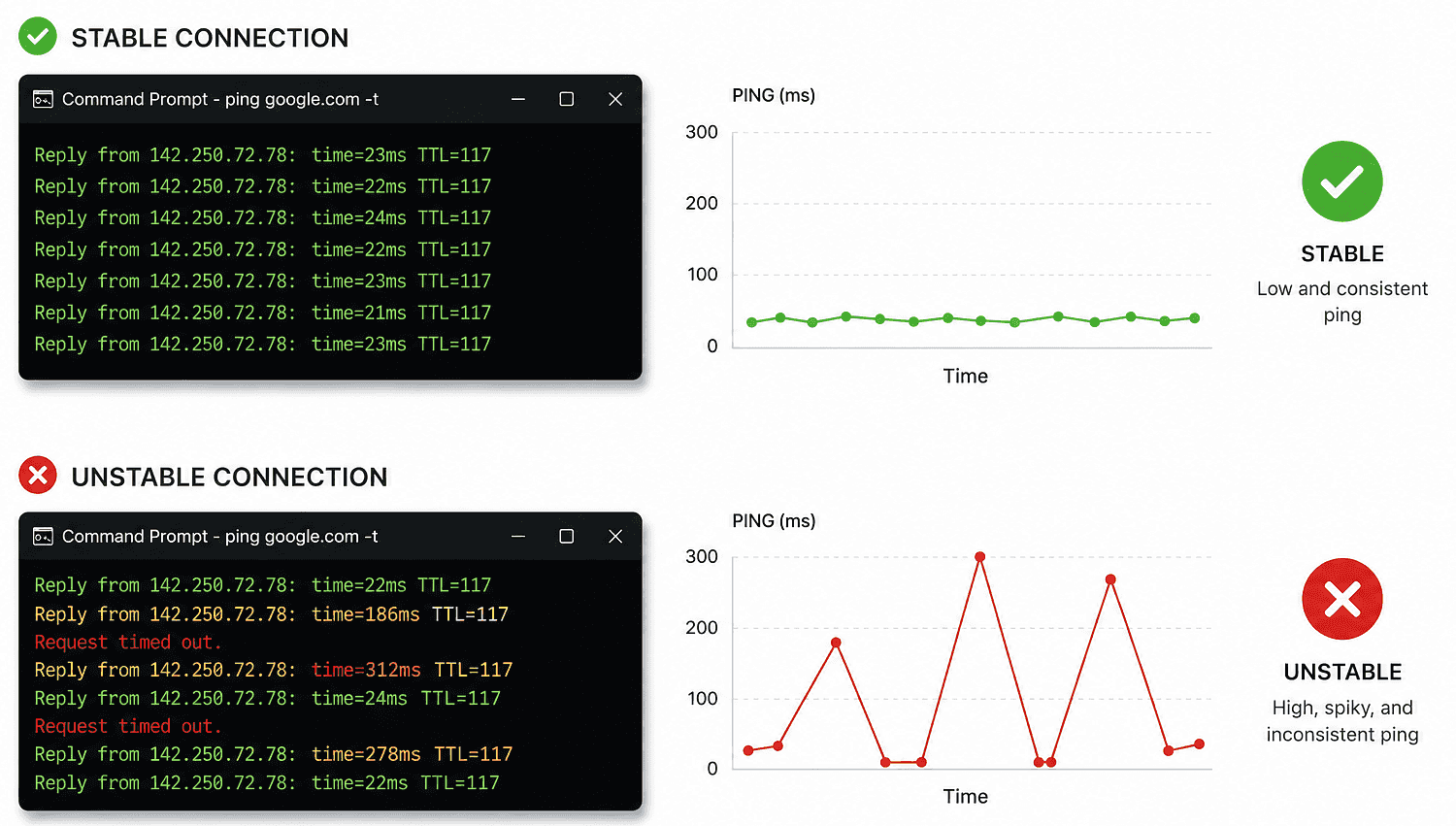
Open Command Prompt and run:
ping google.com -t
Watch for:
- Sudden jumps in latency
- “Request timed out” messages
- Inconsistent response times
Stable internet should look relatively consistent.
If it’s bouncing wildly between 20ms and 300ms, something’s up.
Use PingPlotter or WinMTR
These tools help identify:
- Packet loss
- Routing problems
- Network instability
- Provider-side congestion
Very handy if the issue keeps happening and you want to collate some evidence before contacting your ISP.
Having data, timestamps and connection logs gives support teams something to work with.
And the easier you can prove there’s a fault, the quicker you should be able to get a solution.
What’s a Good Ping for Gaming?
We've all been guilty of chasing the lowest ping possible, but there's something even more important: keeping it steady.
A connection sitting consistently at 50ms will almost always feel smoother than one constantly jumping between 20ms and 150ms. In other words, it's often the spikes, not the average, that ruin your game.
Here's what different ping ranges typically feel like:
- 0–20ms – Ridiculously smooth. About as good as it gets.
- 20–50ms – Excellent. Fast, responsive and ideal for competitive gaming.
- 50–100ms – Usually fine. Most games remain perfectly playable.
- 100–150ms – Noticeable lag. You may start feeling a delay between your actions and what happens on screen.
- Over 150ms – Expect teleporting players, delayed reactions and a few choice words.
Can Your Broadband Package Cause Ping Spikes?
Absolutely.
Speed isn’t everything.
You can have:
- Gigabit download speeds
- Fancy marketing claims
- A router with seventeen antennas
…and still get awful latency if the network quality is poor.
Things that matter more for ping stability:
- Network congestion
- Routing quality
- Fibre vs copper infrastructure
- ISP traffic management
- Router quality
- Wi-Fi performance
Fibre Broadband Usually Helps
Sometimes the problem isn't your Wi-Fi setup, your router or your devices. Sometimes it's the connection itself.
Full fibre broadband delivers a more direct and reliable connection than older copper-based networks, helping to reduce the delays and inconsistencies that can contribute to latency issues.
The benefits include:
- Lower latency
- Greater stability
- Faster response times
- More consistent performance during busy periods
- Less susceptibility to interference
That's why gamers, streamers and remote workers notice a significant improvement after making the switch.
Thinking about upgrading? Enter your postcode to see what full fibre speeds are available in your area.
Signs Your Router Might Be the Problem
Your router could be struggling if:
- Ping spikes happen on every device
- Wi-Fi randomly disconnects
- Speeds fluctuate heavily
- The router gets extremely hot
- It’s several years old
- It came free from your ISP sometime during the Jurassic period
Modern routers handle traffic far more efficiently than older hardware.
When to Contact Your ISP
If you’ve:
- Tested multiple devices
- Tried Ethernet
- Restarted everything
- Ruled out downloads
- Updated firmware
…and the spikes keep happening? It may be time to contact your ISP.
Ask them to check for:
- Line instability
- Congestion
- Packet loss
- Routing issues
- Faults in your area
Bonus points if you’ve already gathered data from PingPlotter or WinMTR!
Final Thoughts
If there's one thing to take away from this guide, it's that ping spikes aren't random. They're a clue.
A clue that somewhere between your device and the server you're trying to reach, something is slowing data down.
The challenge is finding where.
The good news is that most of the common causes are easy to test, easy to rule out and often easy to fix.
Start with the simple stuff. Optimise your setup, eliminate the obvious suspects and see how things improve.
If the spikes persist, it's time to start looking beyond your home network at potential ISP, routing or infrastructure issues.
Frequently Asked Questions
Do Ping Spikes Mean My Internet is Bad?
Nope.
Even fast internet can suffer from unstable latency due to:
- Wi-Fi interference
- Congestion
- Router issues
- Poor routing
Can VPNs Fix Ping Spikes?
Sometimes but rarely.
A VPN can occasionally improve routing paths, but it can also increase latency depending on the server location.
Why are Ping Spikes Worse at Night?
Peak-time congestion.
More people online = more network strain.
Especially on older or heavily shared infrastructure.
Does Faster Broadband Reduce Ping?
Not always.
Higher speeds help with bandwidth-heavy tasks, but low latency depends more on network quality and stability.
Is Ethernet always Better than Wi-Fi?
For latency-sensitive activities like gaming?
Pretty much, yes.
Wired connections are significantly more stable and less prone to interference.
