
Pixels. Buffering. Random slowdowns. The occasional urge to throw your router out of the window.
Before you start blaming your broadband, there's another potential culprit worth investigating: your MTU setting.
MTU plays a huge role in how data travels across your network, influencing everything from website loading times to the reliability of online services. Most people have never heard of it. Fewer still know where to find it.
Here's everything you need to know.
What Is MTU?
MTU stands for Maximum Transmission Unit.
In simpler terms? It’s the largest chunk of data your network can send in a single packet.
Every time you hop on a Zoom or fire up a webpage, your device sends and receives data in tiny packets. MTU controls how big those packets can be.
Think of it like shipping boxes.
- Larger boxes = fewer trips
- Smaller boxes = more trips
- Boxes that are too large = things get rejected, delayed or broken apart
If your MTU size exceeds what the network can comfortably handle, packets can start hitting roadblocks.
Some get chopped into smaller pieces while others end up not making it through at all.
Either way, your connection has to spend time resending data, which can lead to slower performance, increased latency, and a lot of eye-rolling.
Not ideal.
MTU & Network Performance
A badly configured MTU can cause all sorts of sneaky problems, including:
- Slow website loading
- Lag spikes while gaming
- Buffering during streaming
- VPN instability
- Broken video calls
- Random connection drops
- Certain websites partially failing to load
- Reduced upload performance
One of the reasons MTU problems are so easy to miss is that they rarely bring your connection to a halt.
Instead, they chip away at performance, leaving everything feeling sluggish and harder work than it should be.
How MTU Affects Speed
MTU won’t directly increase your broadband speed. Nor will it suddenly turn a 100Mbps line into gigabit internet.
But what it does and will affect is efficiency.
When packet sizes are optimal:
- Less fragmentation happens
- Devices process data more efficiently
- Fewer retransmissions are needed
- Latency can improve
- Connections feel more stable
In other words, your data gets where it needs to go with less drama along the way. Which is a big win for gaming, VoIP calls and VPN traffic.
What’s The Best MTU Size?
If you're looking for the perfect MTU size, we'd love to give you a neat little number and call it a day.
Unfortunately, the "perfect" MTU depends on who's asking.
While 1500 is the most common MTU setting on home broadband networks, the right value depends on how your connection is built and what it needs to carry.
Most connections fall into one of these camps:
- 1500 bytes – The default for most home broadband connections and standard Ethernet networks. If everything is working as expected, this is usually the best place to be.
- 1492 bytes – Common on broadband connections that use PPPoE, where a small amount of space is needed for extra connection data.
- 1400–1472 bytes – Often used by VPNs, as encryption adds additional overhead that reduces the amount of data each packet can carry.
- 1420–1500 bytes – Sometimes seen on mobile broadband and 4G/5G networks, although the exact value varies between providers.
If your MTU is too large, the network has to find a way to make it fit, and that usually comes at a very slow and laggy cost.
Signs Your MTU Might Be Wrong
You don’t need to be deep into the world of networking to spot MTU issues.
A few tell-tale signs include:
Websites Only Partially Load
Images fail. Pages hang (freeze). Some apps work while others don’t.
Textbook MTU behaviour.
Gaming Feels Inconsistent
High ping spikes. Rubberbanding. Random disconnects.
Especially common on VPNs or custom router setups.
Video Calls Break Up
Audio cuts out. Frozen screens. Calls dropping mid-conversation.
Not exactly helping your “can everyone hear me?” confidence.
VPN Performance Is Terrible
A mismatched MTU is one of the most common VPN performance killers.
How To Find Your Ideal MTU
The goal is simple:
Find the largest packet size that travels without fragmentation.
On Windows, you can test this using Command Prompt.
Start with:
ping google.com -f -l 1472
Here’s what that means:
- -f = don’t fragment packets
- -l = packet size
If packets fragment, lower the number slightly and test again.
Once you find the highest stable value, add 28 bytes for headers.
Example: 1472 + 28 = 1500
That final number is your ideal MTU.
Simple…ish.
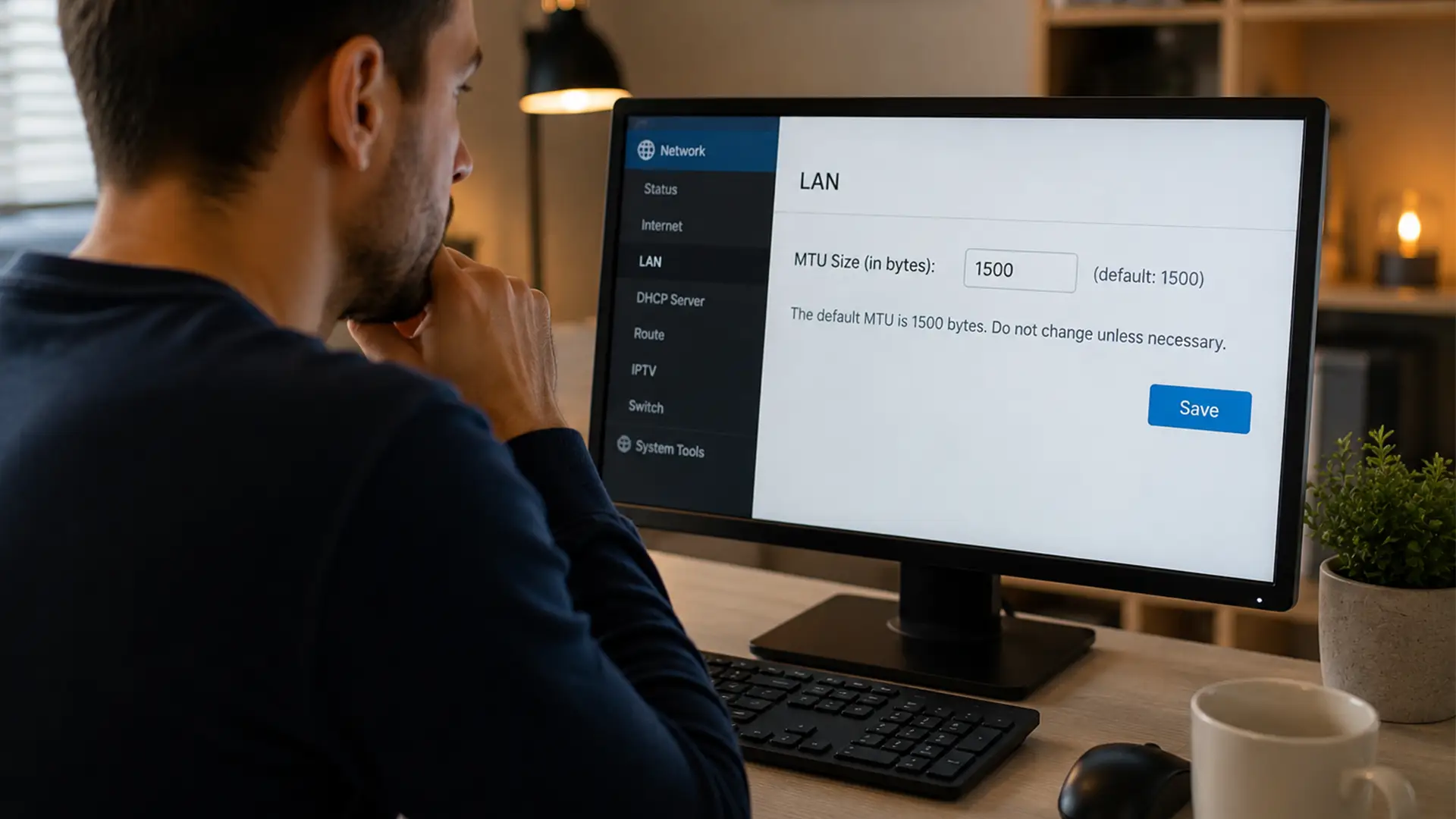
How To Change MTU Settings
Most people change MTU on their router.
Usually you’ll find it under:
- WAN settings
- Internet settings
- Advanced network settings
The wording varies by router brand, but the setting is normally easy to spot once you know what you’re looking for.
Save the new value and reboot the router afterwards.
You can also change MTU per device using operating system network settings, though router-level changes are usually easier for home networks.
MTU And Gaming
Gamers tend to notice MTU issues faster than anyone else.
That’s because online games rely heavily on:
- Low latency
- Stable packet delivery
- Minimal retransmissions
A poor MTU setting can create:
- Lag spikes
- Packet loss
- Hit registration issues
- Voice chat instability
You might come across claims that tweaking your MTU is the key to better gaming performance. In reality, unless your network setup specifically requires it, the default value is usually the right one.
MTU And VPNs
VPNs add an extra layer of security to your traffic, but that security comes with a little extra baggage.
Each packet becomes slightly larger, and if your MTU isn't adjusted accordingly, fragmentation becomes much more likely.
That’s why many VPN providers recommend lower MTU values like:
1400 ≤ MTU ≤ 1472
If your VPN feels slow despite fast broadband speeds, MTU is one of the first things worth checking.
Jumbo Frames: Should You Use Them?
Jumbo frames are unusually large MTU sizes, often:
MTU ≈ 9000
They’re mainly used in:
- Data centres
- Enterprise networking
- High-performance storage networks
For normal home broadband?
Not hugely necessary. In fact, enabling jumbo frames incorrectly can create more problems than it solves.
Unless every device on your network fully supports them, stick with standard MTU values.
Does MTU Affect Wi-Fi?
Indirectly, yes.
MTU itself isn’t a Wi-Fi setting, but inefficient packet handling affects wireless performance too.
If your network constantly fragments packets, Wi-Fi devices can experience:
- More retransmissions
- Increased latency
- Lower effective throughput
On busy home networks, that can snowball quite quickly.
Common MTU Myths
“Higher MTU Always Means Faster Internet”
Nope.
Bigger packets only help if the entire network path supports them cleanly.
Too large and performance gets worse.
“MTU Only Matters For Businesses”
Also nope.
Home users regularly run into MTU issues with:
- Fibre broadband
- VPNs
- Gaming routers
- Mesh Wi-Fi systems
- Smart home devices
“Changing MTU Is Dangerous”
Not really.
Worst case, things work badly and you switch it back.
It’s one of the safer network settings to experiment with.
Best MTU Settings For Most People
Here’s the short version:
- Use 1500 for standard Ethernet/fibre
- Use 1492 for PPPoE connections
- Use lower values for VPNs if recommended
- Avoid random “gaming MTU” advice online
- Test instead of guessing
The best MTU is the one your network handles cleanly without fragmentation.
That’s it.
Final Thoughts
MTU settings probably aren’t something most people spend their weekends thinking about. At least, we really hope not.
But when they’re configured badly, they can trigger all kinds of strange connection quirks. And because the symptoms usually look like “bad broadband”, MTU problems are not usually the first port of call when troubleshooting.
A quick MTU tweak can help keep everything running that little bit smoother online. And in this day and age, who doesn’t want that?
