
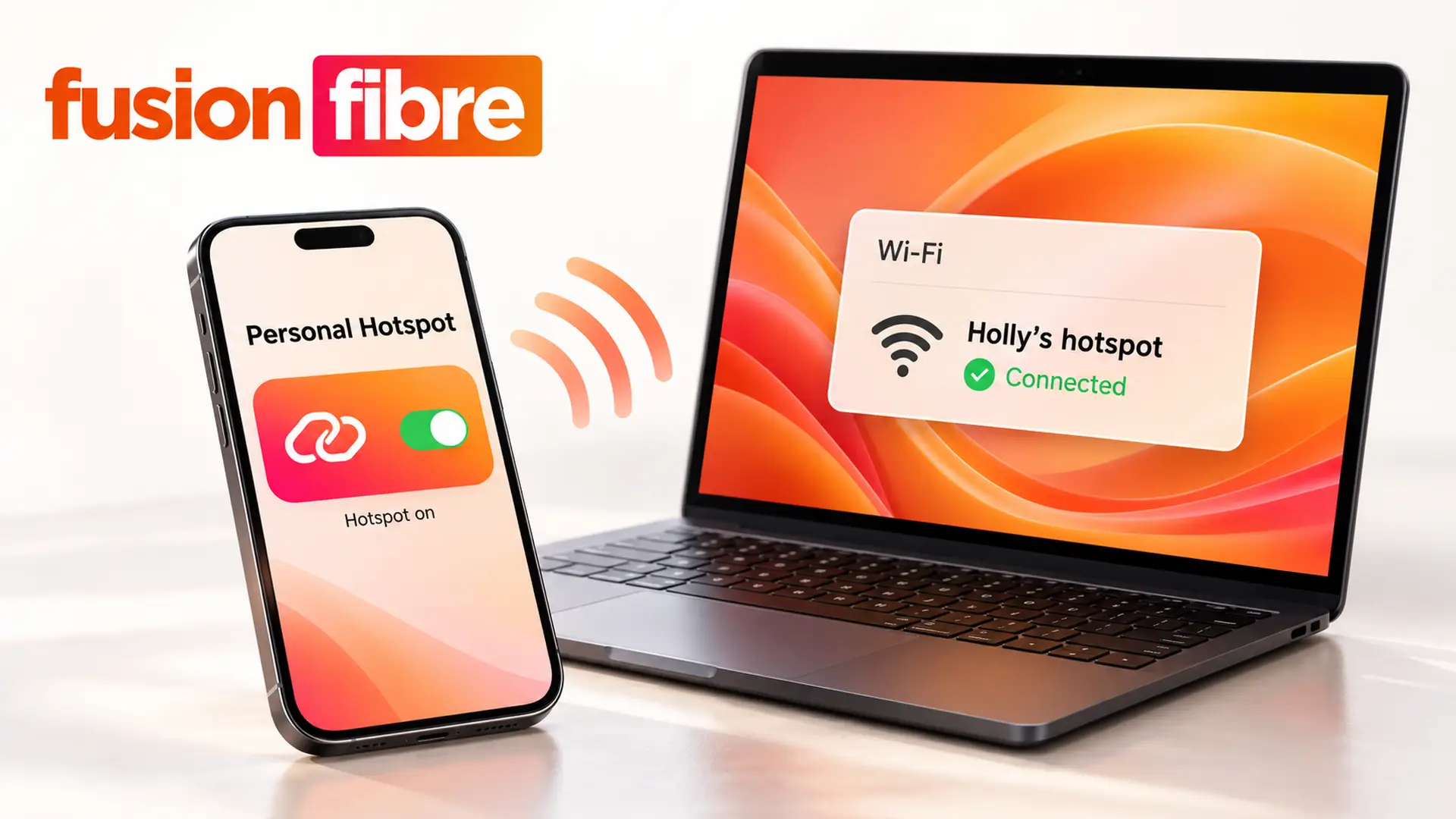
Ever needed to get your laptop online when there's no Wi-Fi available?
Maybe you're working away from home, travelling or dealing with an unexpected broadband outage.
Whatever the situation, a mobile hotspot can help you stay connected.
A mobile hotspot lets you share your smartphone's mobile data connection with other devices, giving you internet access wherever there's a suitable mobile signal.
It's a convenient way to get online without relying on public Wi-Fi or a home broadband router.
But how does a mobile hotspot work, how much data does it use, and is it a practical alternative to home broadband?
In this guide, we'll explain everything you need to know about mobile hotspots, from setting one up to understanding the costs, speeds and limitations.
What Is a Mobile Hotspot?
A mobile hotspot is a feature that allows your smartphone or a dedicated portable device to share a mobile data connection with other devices, such as laptops, tablets and games consoles.
It uses your mobile network's internet connection, typically 4G or 5G, and makes it available to nearby devices.
For example, if you're somewhere without Wi-Fi but your phone has a working mobile data connection, you can switch on its hotspot feature and connect your laptop to the internet.
Your phone effectively becomes a small wireless router.
Most modern iPhones and Android smartphones have a built-in hotspot feature, so you won't usually need any additional equipment.
However, you'll need a mobile data allowance, compatible network service and sufficient signal strength.
Is a Mobile Hotspot the Same as Wi-Fi?
Not quite.
Wi-Fi is the wireless technology that connects devices to a local network.
A mobile hotspot is one way of creating that network and sharing an internet connection.
The important difference is where the internet comes from.
- Home Wi-Fi: Your router usually shares a fixed broadband connection with devices around your home.
- Mobile hotspot: Your smartphone or portable hotspot device typically shares an internet connection supplied by a mobile network.
Both can connect devices wirelessly, but they rely on different ways of getting online.
For a broader explanation, read our guide: What Is a Wi-Fi Hotspot? How It Works and When You Need One.
How Does a Mobile Hotspot Work?
A mobile hotspot works by taking the internet connection from your mobile network and sharing it with other devices.
Here's what happens when you switch one on.
1. Your Phone Connects to a Mobile Network
Your smartphone connects to a nearby mobile network mast using 4G, 5G or another supported mobile technology.
This gives your phone access to the internet through your mobile data plan.
The quality of that connection depends on factors such as mobile coverage, network congestion and signal strength.
2. Your Phone Creates a Wi-Fi Network
When you enable your hotspot, your phone broadcasts a local Wi-Fi network.
Other devices can discover this network in their Wi-Fi settings, much like they would discover your home router.
The hotspot normally has its own network name and password.
3. Other Devices Connect to Your Hotspot
Your laptop, tablet or another compatible device connects to the Wi-Fi network created by your phone.
Once connected, it can use your phone's mobile internet connection.
4. Your Phone Shares the Internet Connection
Your phone manages the traffic travelling between your connected devices and the mobile network.
When you open a website on your laptop, for example, the request travels through your phone, across the mobile network and out to the internet.
The response follows the same route back.
All of this happens in seconds, assuming your connection is working properly.
Want to understand the equipment behind wireless networking? Read our guide to what a router does.
How to Set Up a Mobile Hotspot
Setting up a mobile hotspot usually takes less than a minute.
The exact instructions depend on your phone's operating system and software version.
How to Turn On a Mobile Hotspot on iPhone
If you have an iPhone, follow these steps:
- Open Settings.
- Tap Personal Hotspot, or find it under Mobile Data.
- Turn on Allow Others to Join.
- Check the Wi-Fi password displayed on the screen.
- Open the Wi-Fi settings on your laptop or other device.
- Select your iPhone's hotspot network.
- Enter the password to connect.
Your device should now be able to access the internet through your iPhone's mobile data connection.
Depending on your iPhone model, you may also see a Maximise Compatibility option. This can help older devices connect, although it may reduce wireless performance.
If the Personal Hotspot option isn't available, check that mobile data is enabled and that your mobile network provider supports hotspot use.
How to Turn On a Mobile Hotspot on Android
Android smartphones have a similar feature, although menu names vary between manufacturers.
On many Android devices:
- Open Settings.
- Select Connections or Network & Internet.
- Tap Mobile Hotspot and Tethering or Hotspot & Tethering.
- Select Mobile Hotspot or Wi-Fi Hotspot.
- Turn the hotspot on.
- Check or change the network name and password.
- Connect your other device through its Wi-Fi settings.
On Samsung phones, the option is commonly found under Settings > Connections > Mobile Hotspot and Tethering.
On Google Pixel phones, you'll typically find it under Settings > Network & Internet > Hotspot & Tethering.
If your phone's menus look different, use the Settings search bar and type hotspot.
How to Connect a Laptop to a Mobile Hotspot
Once your phone's hotspot is switched on:
- Open the Wi-Fi settings on your Windows laptop or Mac.
- Find your phone's hotspot name in the list of available networks.
- Select it and enter the password.
- Wait for the connection to establish.
- Open a website to check that everything is working.
Your laptop is now using your phone's mobile internet.
Remember that laptops can consume significant amounts of data through cloud syncing, operating system updates and downloads.
If you're using a limited mobile data allowance, consider enabling your laptop's metered connection settings.
What Is Mobile Hotspot Tethering?
Tethering is the process of sharing one device's internet connection with another.
A mobile hotspot is a common form of tethering, but there are several ways to share your connection.
Wi-Fi Tethering
Your phone creates a wireless network that nearby devices can join.
It's the most familiar option and works with most Wi-Fi-enabled laptops and tablets.
USB Tethering
You connect your phone directly to a compatible computer using a USB cable.
This can offer a stable connection without relying on Wi-Fi and may help keep your phone charged.
Availability depends on your phone, operating system and cable compatibility.
Bluetooth Tethering
Your phone shares its connection with another device over Bluetooth.
Bluetooth tethering can be useful for basic tasks, but it's generally slower than Wi-Fi or USB tethering.
For most people, a Wi-Fi mobile hotspot is the simplest choice.
Does a Mobile Hotspot Use Mobile Data?
Yes. A mobile hotspot normally uses the mobile data allowance included in your phone contract or pay-as-you-go plan.
When another device connects to your hotspot, its internet activity counts towards the data used by your mobile connection.
For example, if you connect your laptop and watch a video, that streaming activity uses your mobile data.
The same applies to downloading files, joining video calls, browsing websites and installing software updates.
How Much Data Does a Mobile Hotspot Use?
That depends on what you're doing online.
Here are some illustrative estimates of how much data different activities may use:
- Basic browsing and emails: Around 50–150 MB per hour, depending on the websites you visit and the size of any attachments.
- Music streaming: Approximately 40–150 MB per hour, depending on audio quality.
- Standard-definition video streaming: Around 500 MB–1 GB per hour.
- HD video streaming: Approximately 1–3 GB per hour.
- 4K video streaming: Around 7 GB per hour or more.
- Video calls: Approximately 500 MB–2 GB per hour, depending on the platform, resolution and number of participants.
- Large downloads and software updates: Usage depends on the size of the files being downloaded.
These are broad estimates rather than fixed amounts. Data consumption varies with video quality, apps, settings and background activity.
A laptop can also download updates without you noticing, so your data allowance may disappear faster than expected.
How to Reduce Mobile Hotspot Data Usage
A few simple changes can help your data last longer.
- Pause automatic updates: Stop unnecessary app and operating system updates while connected to your hotspot.
- Lower streaming quality: Watching videos in standard definition rather than HD or 4K can significantly reduce data consumption.
- Pause cloud syncing: Temporarily stop automatic photo backups and large file uploads.
- Use a metered connection: Windows allows you to mark a Wi-Fi connection as metered, which can reduce some background data usage.
- Disconnect unused devices: Only keep devices connected when you need them.
- Monitor your allowance: Check mobile data consumption through your phone settings or network provider's app.
If you're regularly using a hotspot for work, streaming or downloading, a generous mobile data allowance is worth considering.
Is a Mobile Hotspot Free?
The hotspot feature itself is generally included on modern smartphones.
However, using a mobile hotspot isn't necessarily free, because it relies on mobile data.
Whether you pay anything extra depends on your mobile contract.
Here's what to consider:
- Your existing data allowance: If your plan includes sufficient data and permits tethering, you may not pay anything beyond your usual monthly charge.
- Extra data charges: Some providers charge additional fees if you exceed your allowance.
- Speed restrictions: Your provider may reduce your connection speed after you reach a particular usage threshold.
- Roaming charges: Using your hotspot abroad could cost more, depending on your mobile plan and destination.
- Tethering restrictions: Some contracts limit the amount of data you can share with other devices.
Even an unlimited mobile data plan may have a fair usage policy, hotspot restriction or speed limitation.
Check your provider's terms before using your hotspot heavily, especially overseas.
How Fast Is a Mobile Hotspot?
Mobile hotspot speeds depend mainly on the underlying mobile connection.
A hotspot using a strong 5G connection may deliver excellent download speeds, while one relying on weak 4G coverage may struggle with demanding tasks.
Several factors affect performance:
- Mobile network coverage: Weak or inconsistent signals can reduce speeds.
- 4G or 5G availability: Different mobile technologies offer different performance capabilities.
- Network congestion: Speeds may fall when lots of people use the same mobile network.
- Distance from your phone: Devices further away may receive a weaker Wi-Fi signal.
- Connected devices: Sharing the connection between several devices can reduce the bandwidth available to each.
- Phone capabilities: Older smartphones may have less capable mobile and Wi-Fi hardware.
A 5G hotspot isn't automatically faster than home broadband. Performance depends on local coverage, signal quality, network capacity and your device.
For more on connection performance, explore our guide to broadband versus Wi-Fi.
Mobile Hotspot vs Home Broadband: What's the Difference?
A mobile hotspot and home broadband both provide internet access, but they're designed for different situations.
Here are the main differences.
- Internet connection: A mobile hotspot uses a mobile network, usually 4G or 5G. Full fibre broadband uses a fibre optic connection running directly to your property.
- Portability: A mobile hotspot can travel with you, while home broadband is installed at a fixed address.
- Equipment: A smartphone or portable hotspot device provides mobile internet sharing. Home full fibre broadband typically uses a router and an optical network terminal.
- Data allowance: Mobile hotspots use the allowance included in your mobile plan. Home broadband packages commonly include unlimited data.
- Connection consistency: Mobile hotspot performance can vary with signal strength and network congestion. Full fibre generally provides a more consistent connection at a fixed address.
- Multiple devices: A mobile hotspot can connect several devices, but home broadband is usually better suited to households with lots of connected equipment.
- Power: Mobile hotspots can operate using battery power. Home broadband equipment normally requires mains electricity.
- Everyday use: Mobile hotspots are convenient for temporary access, travel and emergencies. Home broadband is designed for regular household internet use.
Can a Mobile Hotspot Replace Home Broadband?
It can, particularly if you live alone, use relatively little data or need internet access for a short period.
But whether it makes sense depends on your circumstances.
A mobile hotspot may be enough for browsing, emails, occasional video calls and light streaming.
However, using your phone as your main home internet connection has drawbacks.
Mobile speeds can fluctuate. Battery life may suffer. Data allowances can become restrictive. And connecting lots of devices can affect performance.
For a household with several people streaming, gaming, working remotely and using smart home devices, a fixed broadband connection is often the more practical option.
Full fibre broadband, also known as FTTP, uses fibre optic cables directly to your property, providing a connection that doesn't depend on the strength of your indoor mobile signal.
You can learn more on our full fibre broadband explained page.
Is Full Fibre Available Where You Live?
If you're regularly relying on mobile data because your home internet isn't keeping up, it may be worth checking your broadband options.
At Fusion Fibre, we help homes access full fibre broadband through our growing network and wholesale network partners.
Our checker searches multiple fibre networks to show available services at your address.
Check full fibre broadband availability in your area.
When Should You Use a Mobile Hotspot?
Mobile hotspots are particularly useful when you need a temporary or portable internet connection.
1. Working Away From Home
Need to send an important email or join an online meeting while travelling?
A mobile hotspot can connect your laptop wherever you have suitable mobile coverage.
Just remember that video calls can use substantial data and require a stable connection.
2. When Your Home Broadband Goes Down
If your home internet stops working, your phone's hotspot can provide a temporary backup.
It's useful for essential emails, browsing and other tasks that can't wait.
However, if your phone uses the same underlying network infrastructure as the affected broadband service, it may also be disrupted.
If your home connection is playing up, try our guide on why your internet is slow and how to fix it.
3. Travelling Around the UK
Whether you're staying in a hotel, visiting family or working from somewhere new, a mobile hotspot can help you connect without depending on guest Wi-Fi.
You'll still need adequate mobile coverage.
4. Connecting a Tablet Without Mobile Data
Some tablets only support Wi-Fi and don't have their own mobile data connection.
A mobile hotspot lets them access the internet through your phone.
This can be useful for navigation, browsing, studying or entertainment while travelling.
5. Moving House
Moving into a new home before your broadband is activated?
A mobile hotspot can help bridge the gap.
It won't necessarily provide the same experience as a permanent broadband connection, but it can keep essential devices online.
If you're moving, it's worth checking full fibre availability at your new address before moving day.
What Are the Advantages of a Mobile Hotspot?
Mobile hotspots offer several practical benefits.
- Portable internet access: Your connection can travel with you, provided your mobile network has coverage.
- Easy setup: Most smartphones already support hotspot sharing, so you don't need a separate router.
- Convenient backup connection: If your main internet connection fails, a mobile hotspot may provide a temporary alternative.
- Multiple device support: Many smartphones allow several devices to connect simultaneously, although the maximum number varies.
- Greater control than public Wi-Fi: Using your own password-protected hotspot gives you more control over who can join the network.
A mobile hotspot is particularly convenient for occasional internet access away from home.
However, your connection still depends on your mobile provider and the security of your devices.
What Are the Disadvantages of a Mobile Hotspot?
Despite their convenience, mobile hotspots have limitations.
- Battery drain: Sharing mobile data and broadcasting Wi-Fi can use significant battery power.
- Data limits: Streaming, downloads and background updates can quickly consume a limited data allowance.
- Variable speeds: Mobile networks are affected by coverage, congestion and signal conditions.
- Limited Wi-Fi range: A smartphone hotspot generally provides a smaller coverage area than a well-positioned home Wi-Fi router or mesh network.
- Reduced performance with multiple devices: The more devices sharing a connection, the more competition there may be for the available bandwidth.
- Heat during extended use: Your smartphone may become warm when running a hotspot for long periods.
If you're struggling with wireless coverage at home, a mobile hotspot is unlikely to solve the underlying problem.
Our guide to the difference between broadband and Wi-Fi explains why connection speed and Wi-Fi coverage aren't the same thing.
Is a Mobile Hotspot Secure?
A mobile hotspot can be a secure way to access the internet, provided it's configured correctly.
Modern smartphones generally support encrypted hotspot connections, but the security settings available depend on the device.
To help keep your connection protected:
- Use a strong password: Choose a unique password that's difficult to guess.
- Use modern Wi-Fi security: Select WPA3 where available and compatible, or WPA2-AES on supported devices.
- Only share access with trusted people: Avoid giving your hotspot password to people you don't know.
- Turn off your hotspot when you're finished: This reduces unnecessary exposure and helps conserve battery life.
- Keep your phone updated: Software updates can include important security fixes.
- Check connected devices: Remove unfamiliar devices where your phone provides that option.
A personal hotspot gives you more control than an unfamiliar public Wi-Fi network, but it doesn't eliminate online threats.
Avoid suspicious links, use strong account passwords and keep your devices protected.
For more practical advice, explore Fusion Fibre's broadband and online safety guides.
Why Is My Mobile Hotspot Not Working?
Switched on your hotspot but still can't get connected?
There are several possible causes.
Your Mobile Data Is Switched Off
A hotspot normally needs an active mobile data connection.
Check that mobile data is enabled and that your phone can access the internet without Wi-Fi.
Your Mobile Signal Is Weak
If your phone has poor mobile reception, devices connected to its hotspot may struggle to load websites.
Try moving somewhere with better coverage, such as near a window.
You've Used Your Data Allowance
Some providers restrict or stop data access when you reach your monthly limit.
Check your account or provider's app.
Your Hotspot Password Is Incorrect
If another device can't join the network, double-check the hotspot password.
You can also try forgetting the network on your laptop and reconnecting.
Your Devices Aren't Compatible
Some older devices may struggle with particular Wi-Fi bands or security settings.
If your phone offers a compatibility setting, enabling it may help.
Your Phone Needs Restarting
Sometimes a quick restart is enough to restore a connection.
Turn the hotspot off, restart your phone and try again.
Your Mobile Provider Restricts Tethering
Some mobile plans have tethering limits or restrictions.
If everything else looks fine, check your provider's terms or contact its support team.
For more general troubleshooting advice, visit our broadband help and networking guides.
Mobile Hotspot vs Portable Wi-Fi Router: Which Is Better?
A smartphone hotspot isn't the only way to share mobile internet.
You can also buy a dedicated portable hotspot device, sometimes called a MiFi device or mobile Wi-Fi router.
These devices connect to a mobile network using a SIM or eSIM and share the connection over Wi-Fi.
Smartphone Hotspot
A smartphone hotspot is convenient because you're already carrying the equipment.
It's ideal for occasional use, short trips and backup internet.
However, it shares your phone's battery, mobile connection and processing resources.
Portable Mobile Wi-Fi Router
A dedicated mobile hotspot device is designed specifically to provide internet access to other devices.
Depending on the model, it may offer:
- A separate battery
- Support for more connected devices
- Dedicated connection management features
- External antenna support
- 4G or 5G connectivity
Performance and battery life vary between models, so a dedicated device isn't guaranteed to outperform a smartphone.
If you need portable internet regularly, comparing dedicated mobile hotspot devices may be worthwhile.
Can You Use a Mobile Hotspot for Gaming?
Yes, you can connect many games consoles and gaming laptops to a mobile hotspot.
But online gaming depends on more than download speed.
Latency, jitter and connection stability all affect how responsive your game feels.
Mobile networks can experience changes in latency as signal strength and network congestion fluctuate.
That may lead to lag, delayed responses or disconnections during online play.
Game downloads and updates can also consume large amounts of mobile data.
For occasional gaming, a strong mobile connection may be sufficient.
For regular competitive gaming, a stable fixed broadband connection is often preferable.
Read our guide to the best broadband for gaming to understand how ping, speed and connection quality affect gameplay.
Stay Connected at Home and On the Go
A mobile hotspot is a simple way to get online when traditional Wi-Fi isn't available.
Whether you're working while travelling, connecting a tablet or dealing with a temporary broadband outage, it gives you a useful backup.
But if you're constantly relying on your phone to keep your home connected, it may be time to look at your broadband options.
At Fusion Fibre, we provide fast, reliable full fibre broadband designed for streaming, gaming, working and everything else your household gets up to online.
And finding out what's available at your address is easy.
Check your postcode with Fusion Fibre's Full Fibre Availability Checker and explore the broadband options available where you live.
Frequently Asked Questions About Mobile Hotspots
What Does a Mobile Hotspot Do?
A mobile hotspot shares a mobile internet connection with other devices, usually by creating a Wi-Fi network.
It allows laptops, tablets and other compatible devices to get online using your phone's mobile data.
Do I Need Wi-Fi to Use a Mobile Hotspot?
No. A mobile hotspot typically uses a 4G or 5G mobile data connection to provide internet access.
Your phone then shares that connection using Wi-Fi or another supported tethering method.
Does a Mobile Hotspot Work Without Mobile Data?
A conventional mobile hotspot requires a working internet connection, usually mobile data.
Some devices can share an existing Wi-Fi connection through a hotspot feature, but this depends on the phone and its software.
Without an internet connection, a hotspot may still create a local network, but connected devices won't have normal internet access.
Does Using a Mobile Hotspot Drain Your Battery?
Yes. Running a hotspot uses power for mobile network communication and Wi-Fi sharing.
Battery consumption depends on signal strength, connected devices and how heavily the connection is being used.
How Many Devices Can Connect to a Mobile Hotspot?
The number depends on your phone model, operating system and mobile network settings.
Some phones support several connected devices, while others allow more.
Check your device specifications for the supported limit.
Can I Leave My Mobile Hotspot On All Day?
You can, provided your phone supports prolonged hotspot use and has enough power.
However, extended use may increase battery consumption, heat and mobile data usage.
For everyday home connectivity, a dedicated broadband connection is usually more convenient.
Is a Mobile Hotspot Better Than Public Wi-Fi?
A password-protected mobile hotspot can offer more control over who accesses your network.
However, its speed and reliability depend on your mobile signal and data plan.
Public Wi-Fi may be faster in some locations, but you should take care when connecting to unfamiliar networks.
Does a Mobile Hotspot Work Abroad?
It can, provided your mobile provider supports roaming and tethering in the country you're visiting.
Roaming charges, fair usage restrictions and data limits may apply.
Always check your plan before travelling.
Is 5G Hotspot Better Than 4G?
5G can provide faster speeds, greater capacity and lower latency than 4G under suitable conditions.
However, real-world performance depends on coverage, network congestion, your device and the available spectrum.
A strong 4G connection may outperform a weak 5G connection.
Can Someone Connect to My Hotspot Without My Password?
A properly secured hotspot normally requires authentication before another device can connect.
Use a strong password, keep your software updated and check your connected devices to reduce the risk of unwanted access.
