
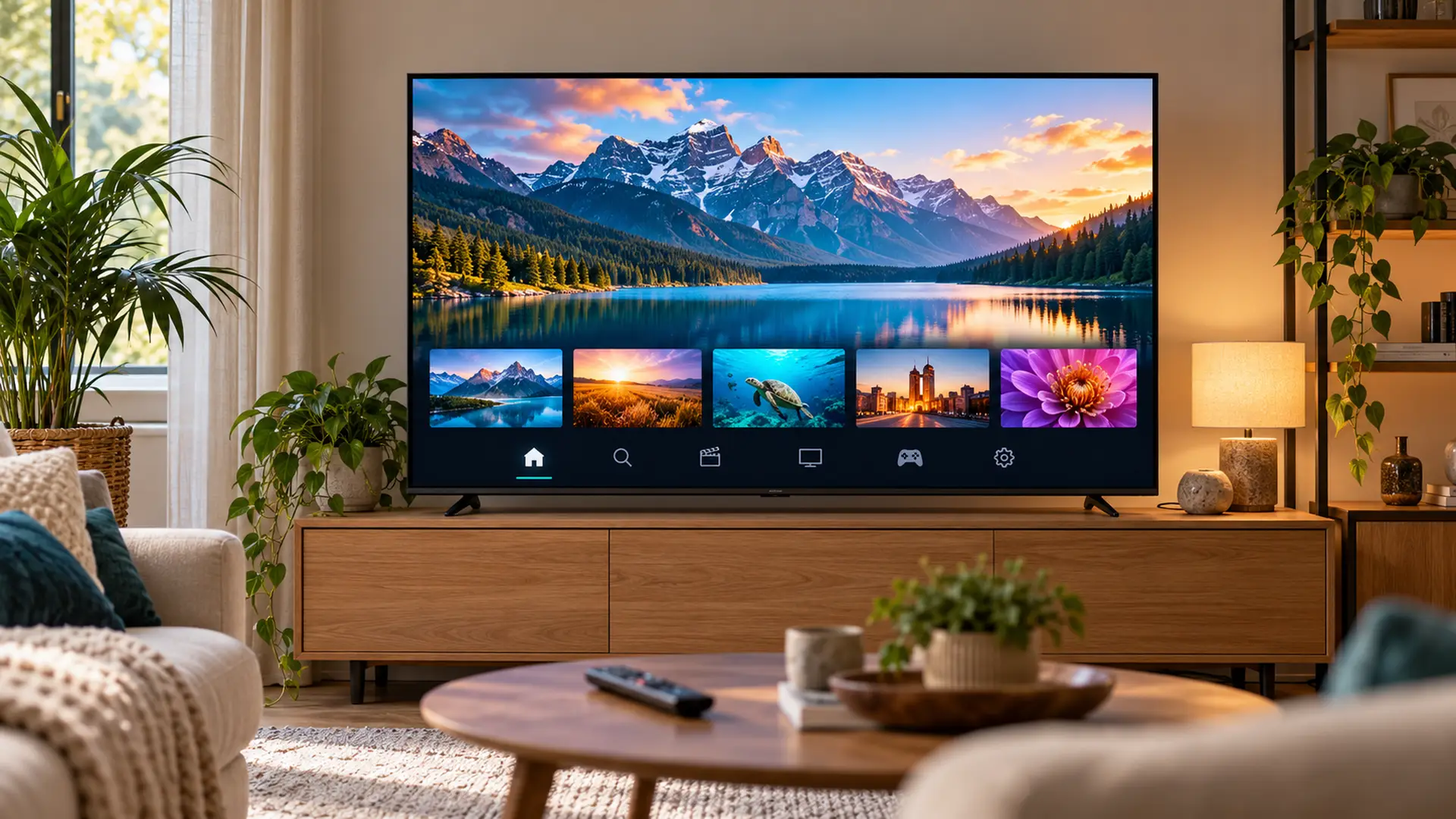
TVs have come a long way since the days of flicking through five channels and hoping something good was on.
These days, your telly can stream the latest box sets, play music, show YouTube videos and even respond to voice commands. All from one device.
Meet smart TVs. The new age of home entertainment, bringing your favourite shows, streaming services and clever features together on one screen.
But what makes a smart TV so smart? How does it all work, and is upgrading worth it?
Here's everything you need to know.
What is a smart TV?
A smart TV is a television that connects to the internet and lets you access streaming services, apps and online content directly from your TV.
It functions in the same way as regular television with some of the features of a smartphone built in.
You can download apps, browse entertainment, watch programmes on demand and access content whenever you fancy.
Instead of relying entirely on traditional TV channels, a smart TV gives you more control over what you watch and when you watch it.
Most modern TVs are smart TVs, with popular manufacturers including Samsung, LG, Sony and TCL offering models with built-in internet connectivity.
How does a smart TV work?
A smart TV works by connecting to your home internet, usually through Wi-Fi or an Ethernet cable.
Once connected, it can communicate with online services and stream content directly to your screen.
Every smart TV has a built-in operating system. This is the software that powers its menus, apps, settings and other features.
Different manufacturers use different systems, including:
- Samsung Tizen: Found on many Samsung smart TVs, with access to streaming apps and connected features.
- LG webOS: LG's smart TV platform, designed around easy navigation and app access.
- Google TV: Found on selected Sony, TCL and other TVs, bringing together streaming services and personalised recommendations.
- Fire TV: Amazon's entertainment platform, built into selected televisions, with access to streaming apps and Alexa features.
- Roku TV: A simple, streaming-focused platform available on compatible TVs.
Although the menus and layouts vary, they all serve a similar purpose: helping you find and enjoy entertainment.
You choose an app, select something to watch, and your TV uses your internet connection to stream it.
No separate streaming stick required.
What can you do with a smart TV?
There's a lot more to a smart TV than watching live television.
Here are some of the features that make them handy.
1. Stream your favourite films and TV shows
One of the biggest reasons people choose a smart TV is the convenience of streaming.
Depending on your TV and the apps available, you can watch services such as:
- Netflix
- BBC iPlayer
- ITVX
- Channel 4
- Disney+
- Amazon Prime Video
- YouTube
- Apple TV
Rather than switching between different devices, you can open your favourite streaming app straight from your TV's home screen.
Some services are free, while others need a paid subscription.
We'll get into that a little later.
2. Watch programmes whenever you want
Missed last night's episode of Eastenders? No problem.
Smart TVs make it easy to access catch-up and on-demand services, so you can watch programmes at a time that suits you.
Services such as BBC iPlayer, ITVX and Channel 4 let you catch up on eligible programmes, while other platforms offer entire series ready to watch.
It's a lot more flexible than planning your evening around the TV schedule.
3. Listen to music and podcasts
Your smart TV can double as a music player.
Depending on the model, you might be able to install apps such as Spotify, YouTube Music or other audio services.
Play your favourite playlist while cooking, put on some background music when friends visit, or listen to a podcast without reaching for your phone.
And if you've got a compatible soundbar or speaker system, you can make the most of your TV's audio setup.
4. Use voice commands
Some smart TVs come with voice control, either through a microphone in the remote or a compatible voice assistant.
Depending on your TV, you may be able to:
- Search for films and programmes
- Open streaming apps
- Adjust the volume
- Change settings
- Control compatible smart home devices
For example, instead of typing a programme name using the remote, you can simply ask your TV to find it.
Voice control varies between models, and some features need an internet connection or account setup.
5. Share content from your phone
Got holiday photos you want to show everyone? Or a video that's better on a bigger screen?
Many smart TVs support screen mirroring or casting, allowing you to share compatible content from your smartphone, tablet or laptop.
Depending on your devices, you might use Google Cast, Apple AirPlay or another wireless sharing feature.
It's worth checking compatibility, as not every smart TV supports every casting method.
6. Connect other devices
A smart TV can still do plenty of the things you'd expect from a traditional television.
Most models include HDMI connections for devices such as:
- Games consoles
- Blu-ray players
- Soundbars
- Laptops
- Set-top boxes
Some also support Bluetooth headphones, wireless speakers or other accessories.
So, whether you're gaming, watching a film or enjoying a box set, you've got options.
What's the difference between a smart TV and a normal TV?
The main difference is that a smart TV connects to the internet and has built-in apps, while a traditional TV generally relies on broadcast signals or external devices for entertainment.
Here's how they compare:
- Internet connectivity: Smart TVs can connect directly to the internet through Wi-Fi or Ethernet, while traditional TVs usually don't have built-in internet access.
- Streaming apps: Smart TVs let you access services like Netflix, BBC iPlayer and Disney+ directly. Traditional TVs need a separate streaming device to do the same.
- Live TV: Both can show live television through a compatible aerial or set-top box, but smart TVs can also access live channels through supported streaming apps.
- Catch-up TV: Smart TVs let you watch missed programmes through apps like BBC iPlayer and ITVX. Traditional TVs generally need an additional device.
- Voice control: Some smart TVs let you search for programmes, open apps and adjust settings using voice commands. Traditional TVs don't usually offer this feature.
- Gaming: Both types of TV can connect to games consoles using suitable connections, such as HDMI.
- Watching without internet: Both can work without an internet connection for traditional broadcasts or connected devices, although smart TVs need internet access for most of their online features.
And remember, a non-smart TV can still be a perfectly good telly.
If you're happy with yours, there's no need to rush out and replace it. Devices like an Amazon Fire TV Stick, Roku streaming player or Apple TV box can bring streaming apps and internet features to a compatible older television.
Does a smart TV need internet to work?
No, a smart TV doesn't need internet for everything. But you'll need an internet connection to use most of its smart features.
Without internet, you can generally still use a smart TV to:
- Watch broadcast channels through a compatible aerial or satellite connection
- Play games using a connected console
- Watch DVDs or Blu-rays through an external player
- Display content from devices connected by HDMI
What you won't usually be able to do is stream Netflix, watch BBC iPlayer, download new apps or access online services.
Some TVs may also need internet access for their initial setup, software updates or certain account features.
So, while a smart TV can work offline, a reliable internet connection helps you get more out of it.
Does a smart TV need Wi-Fi?
Not necessarily.
Most smart TVs connect to the internet through Wi-Fi, but many also have an Ethernet port for a wired connection to your router.
Wi-Fi is convenient because you don't need to run a cable across the room.
Ethernet can provide a more consistent connection, particularly if your TV is close to your router or your wireless signal struggles to reach it.
Both options can work well. It depends on your home setup.
What broadband speed do you need for a smart TV?
The broadband speed you need depends on what you're watching, the picture quality and how many people are using your connection at the same time.
Streaming in 4K generally uses more bandwidth than watching in standard definition, for example.
And if someone's gaming upstairs while another person is on a video call, your household's overall internet usage matters too.
We've covered the speeds, streaming requirements and household considerations in our dedicated guide: What Broadband Speed Do I Need for Smart TV?
Do you need an aerial for a smart TV?
Not always. It depends on how you want to watch television.
If you want to receive traditional Freeview channels through your TV's built-in terrestrial tuner, you'll generally need a suitable aerial and adequate reception.
But if you mainly use streaming services, you can watch plenty of content through your internet connection without an aerial.
Some compatible smart TVs also support internet-delivered live television services, such as Freely, which can provide live channels without a traditional aerial.
However, availability depends on the television, service and your location.
If watching traditional broadcast channels matters to you, check the TV's tuner and connection options before buying.
Are smart TVs free to use?
There usually isn't a separate monthly fee simply for owning or using a smart TV.
Once you've bought the television, you can access its built-in features, although some services may require accounts, subscriptions or additional payments.
Here's how the costs generally work.
- Free services: Apps such as BBC iPlayer, ITVX and Channel 4 offer free-to-access content, although account registration, advertising and TV Licensing rules may apply.
- Paid subscriptions: Services such as Netflix and Disney+ require a subscription to access their paid content.
- Rentals and purchases: Some platforms let you rent or buy individual films and programmes.
- Internet costs: You'll need a broadband or other suitable internet connection for online features, which may come with its own monthly cost.
Do you need a TV Licence for a smart TV?
In the UK, you need a TV Licence if you watch or record live television on any channel or service, or use BBC iPlayer.
This applies whether you're watching on a smart TV, laptop, tablet or another device.
You don't generally need a TV Licence solely to watch non-live, on-demand programmes on services such as Netflix or Disney+, provided you're not using BBC iPlayer.
You can check the full rules on the official TV Licensing website.
How do you connect a smart TV to Wi-Fi?
Getting a smart TV online is usually pretty simple.
The exact steps depend on your TV's manufacturer and operating system, but the process generally looks like this:
- Turn on your smart TV. Complete any initial setup instructions.
- Open Settings. Look for Network, Connections or Internet Settings.
- Choose Wi-Fi. Your TV should display a list of available wireless networks.
- Select your home network. Choose the Wi-Fi name you normally connect to.
- Enter your password. Make sure you type it correctly, including capital letters.
- Connect and test. Once connected, open a streaming app to check everything is working.
Some TVs will also ask you to sign in to a manufacturer account, accept terms or install software updates.
If your TV supports Ethernet, you can connect it directly to your router using a suitable cable instead.
What if your smart TV won't connect to Wi-Fi?
Before assuming something's wrong with the TV, try a few simple checks.
- Check whether other devices can connect to your Wi-Fi.
- Make sure you've entered the correct network password.
- Restart your television and router.
- Check that your TV isn't too far from the router.
- Install any available TV software updates once you're able to connect.
- Try a wired Ethernet connection if your TV supports one.
If other devices are also struggling to connect, the problem may be with your home network rather than the television.
What are the benefits of a smart TV?
Smart TVs have become popular for good reason. They make everyday entertainment more convenient and give you more ways to watch.
Everything in one place
You can access streaming apps, catch-up services, live TV options and connected devices through one television.
That means fewer separate gadgets and less switching between different inputs.
More choice over what you watch
With on-demand services, you're less dependent on scheduled programming.
Whether it's a film on Friday night or a quick episode over lunch, you can choose what suits you.
A more personalised experience
Some smart TV platforms can recommend programmes based on your viewing habits, selected services or preferences.
That can make discovering something new a little easier, although the recommendations and personalisation settings vary between platforms.
Handy connected features
Screen sharing, voice search, Bluetooth connectivity and app support can make your television useful beyond traditional viewing.
And if you've already got compatible connected devices at home, some smart TVs can work alongside them.
Curious about how other connected gadgets fit together? Have a read of our guide to What Is a Smart Home?
Are there any disadvantages to smart TVs?
Smart TVs are convenient, but there are a few things worth knowing before buying one.
Some apps need subscriptions
Having a streaming app installed doesn't mean its content is free.
If you subscribe to several services, those monthly costs can add up. It's worth choosing the ones you'll genuinely use.
Apps and features can change
Smart TV apps need ongoing support from both the app provider and the television manufacturer.
Over time, older TVs may stop receiving certain software updates, and individual apps can change or lose compatibility.
That doesn't necessarily mean the television itself stops working. It may simply mean some online features become unavailable.
Privacy settings are worth checking
Like many internet-connected devices, smart TVs may collect information about how you use them.
Depending on the model, this can include viewing activity, app usage and information used to personalise recommendations or advertising.
You can often review or change these settings through your TV's privacy menu.
Your internet connection matters
Online entertainment depends on your connection.
If your Wi-Fi is unreliable, you might experience buffering, slow app loading or interruptions while streaming.
A stable connection can make a noticeable difference to everyday viewing.
Are smart TVs safe and secure?
Smart TVs are generally safe to use, but because they connect to the internet, it's sensible to take a few precautions.
Here are some simple ways to help protect yours:
- Keep the software updated. Updates can fix security issues and improve performance.
- Use a secure home Wi-Fi network. Protect your router with strong encryption and a unique password.
- Review privacy permissions. Check what information your TV and its apps can access.
- Only install apps from trusted sources. Stick to your television's official app store where possible.
- Turn off features you don't use. If you don't need voice control, a microphone or other connected features, review whether they can be disabled.
- Secure your accounts. Use strong, unique passwords for streaming and manufacturer accounts.
You don't need to be a tech expert to keep your smart TV secure. A few sensible settings and regular updates go a long way.
What should you look for when buying a smart TV?
If you're thinking of getting a new television, it's worth looking beyond the word smart on the box.
Most modern televisions already include smart features. The bigger question is which TV best suits your home, viewing habits and budget.
Screen size
A bigger screen can be great for films and gaming, but it should still fit comfortably in your room.
Consider how far away you'll be sitting, where the television will go and whether it will be wall-mounted or placed on a stand.
Picture quality
You'll see terms such as 4K, OLED, QLED and HDR when comparing televisions.
Here's a quick explanation:
- 4K: A screen resolution of 3840 × 2160 pixels, offering more detail than Full HD when the content and viewing conditions make that detail noticeable.
- OLED: A display technology where pixels produce their own light, allowing very deep blacks and strong contrast.
- QLED: Usually refers to an LCD television that uses quantum dots to improve colour performance.
- HDR: High Dynamic Range technology that can improve the range of brightness and colour in compatible content.
You don't need every premium feature to enjoy a good picture. Think about what you watch most and what you're comfortable spending.
Streaming app availability
Check that the TV supports the services you regularly use.
Most major platforms are widely available, but smaller or specialist apps may only work on certain operating systems.
Ease of use
A clear home screen, responsive menus and a straightforward remote can make a big difference.
If possible, try the interface in a shop or watch a demonstration before choosing.
Connections and ports
Think about what you'll want to plug in.
If you've got a games console, soundbar and other devices, make sure there are enough suitable HDMI ports.
You might also want Bluetooth, an Ethernet port or particular gaming features.
Software support
It's worth checking the manufacturer's approach to software updates, particularly if you plan to keep your television for several years.
A good TV should remain useful well beyond the day you bring it home.
Can you turn a normal TV into a smart TV?
Yes. And it's often easier than you might think.
If your existing TV has a compatible HDMI port, you can usually connect a streaming device to give it access to internet-based entertainment.
Popular options include:
- Amazon Fire TV Stick
- Roku streaming players
- Apple TV 4K
- Other compatible streaming devices
These devices have their own software, apps and remote controls.
Connect one to your television, set it up using your internet connection, and you can start accessing supported streaming services.
It's a practical option if your current television still works well and you're mainly interested in adding streaming features.
Is a smart TV worth it?
For many households, yes.
If you regularly watch streaming services, enjoy catch-up TV or want your entertainment apps in one place, a smart TV can make things more convenient.
You can choose what to watch, access a wide range of content and connect other devices without needing a complicated setup.
But that doesn't mean everyone needs to rush out and buy one.
If you're happy with your existing television, a separate streaming device might give you everything you need for less money.
And if you mainly watch traditional broadcast channels, a smart TV's extra features may not be particularly important to you.
The right choice comes down to how you like to watch TV.
Making the most of your smart TV
A smart TV puts streaming, catch-up programmes, apps and plenty of other entertainment options on one screen.
Whether you're watching the latest series, sharing photos or putting on a playlist, it gives you more flexibility over how you use your television.
And while you don't need internet for every feature, a dependable connection helps keep online entertainment running smoothly.
If you're wondering whether your broadband is up to the job, take a look at our smart TV broadband speed guide to understand what different streaming activities need.
Smart TV FAQs
Can you watch normal TV on a smart TV?
Yes. Most smart TVs can receive traditional television channels through a compatible aerial, satellite setup or connected set-top box. Some also offer live channels through internet-based services.
Can you use a smart TV without Wi-Fi?
Yes. You can use an Ethernet connection on supported models or watch content through suitable broadcast connections and external devices. However, most built-in streaming apps need internet access.
Do smart TVs have Netflix built in?
Many smart TVs come with Netflix pre-installed or available to download.
You'll normally need a Netflix subscription to watch its paid content.
App availability depends on the TV model and software support.
Can you browse the internet on a smart TV?
Some smart TVs include a web browser, although browsing with a television remote can be less convenient than using a phone or laptop.
Browser availability and website compatibility vary.
Do smart TVs have Bluetooth?
Many do, but not all.
Depending on the model, Bluetooth may let you connect headphones, speakers, keyboards or other compatible accessories.
Do you need a streaming stick with a smart TV?
Usually not. Smart TVs already have built-in streaming capabilities.
However, a separate streaming device can be useful if your TV doesn't support a particular app or its built-in software has become outdated.
Do smart TVs use a lot of electricity?
Electricity usage depends mainly on the TV's screen size, display technology, brightness settings and how long it's switched on.
Smart features can also use some power in standby, particularly if network functions remain active.
Check the TV's energy label for model-specific information.
How long does a smart TV last?
A smart TV can last for many years, although its lifespan depends on the model, usage and maintenance.
The screen and hardware may continue working even after some apps or software features stop receiving support.
Can you connect your phone to a smart TV?
Yes, on compatible devices.
You may be able to cast videos, mirror your screen or share photos using features such as Google Cast or Apple AirPlay.
Check which wireless sharing technologies your television supports.
