
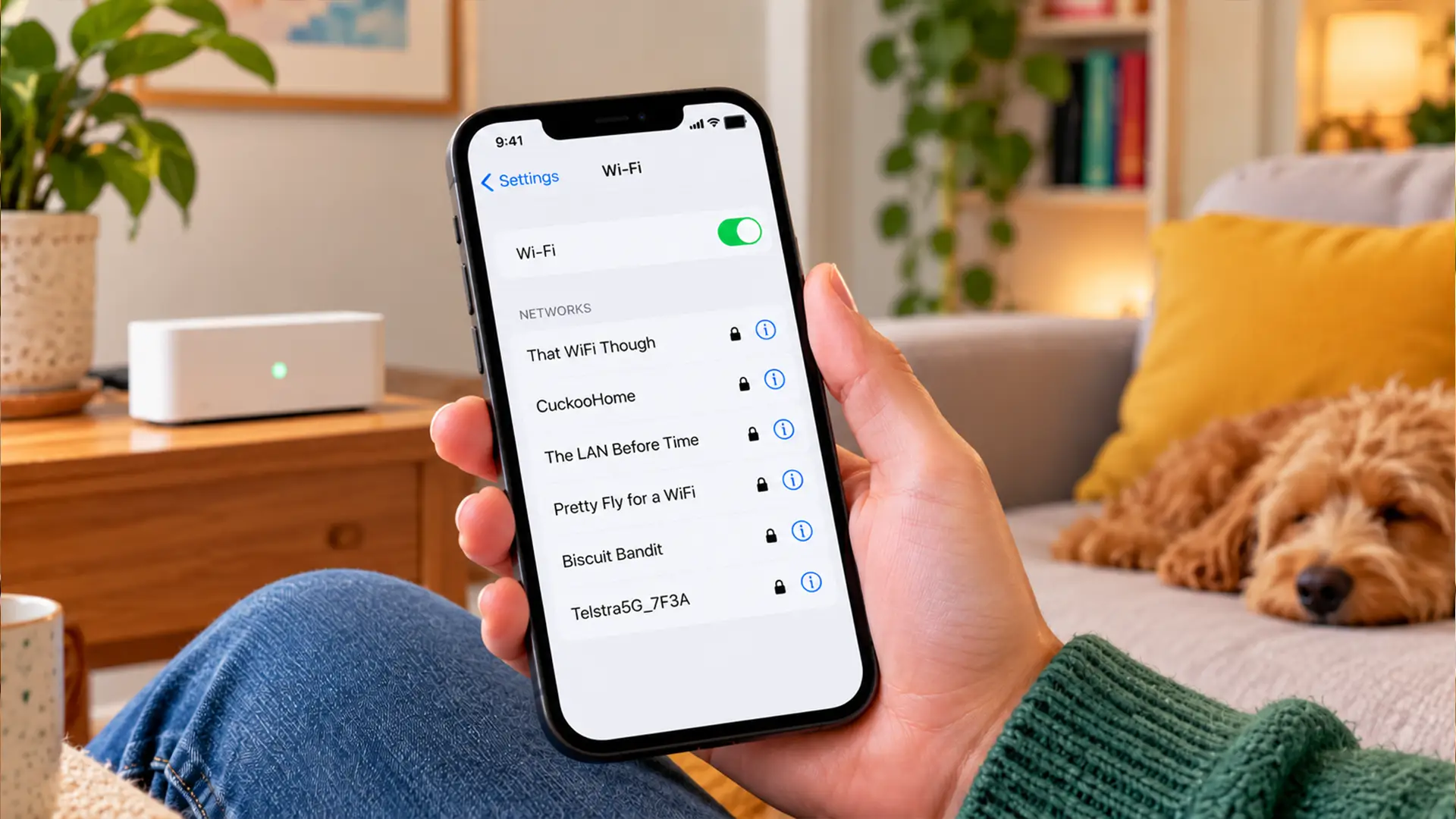
Your Wi-Fi has a name. Your neighbour's Wi-Fi has a name. Even that coffee shop down the road has one. And they all have a technical title: SSID.
Short for Service Set Identifier, an SSID is what helps you identify a Wi-Fi network when looking for a connection.
Here's everything you need to know about how they work and how to find or change yours.
What Is an SSID?
An SSID (Service Set Identifier) is the name used to identify a Wi-Fi network.
It's what you see when you open the Wi-Fi settings on your phone, laptop or another wireless device.
For example, your list of available networks might include:
- FFGHomeWiFi
- TheSmithFamily
- HomeNetwork_5G
- GuestWiFi
Each of these names is an SSID.
Your router or wireless access point uses an SSID to help devices identify the network they want to connect to.
In short, it helps you recognise your network when several are available nearby.
What Does SSID Stand For?
SSID stands for Service Set Identifier.
An SSID can be up to 32 bytes long. Most common letters and numbers use one byte each, but some special characters can use more.
Your broadband router will usually come with a default SSID set by the manufacturer or broadband provider.
This might include the router's brand name followed by a combination of letters and numbers.
You can normally change this name to something more memorable through your router's settings.
How Does an SSID Work?
When you switch on Wi-Fi on your phone or laptop, your device looks for wireless networks nearby.
Wi-Fi routers and access points typically advertise their network names using wireless management signals called beacon frames.
Your device uses this information, along with other network discovery methods, to show available Wi-Fi connections.
Here's what happens when you connect:
- Your device searches for networks. It scans for Wi-Fi networks within range.
- Available SSIDs appear. You see a list of network names in your Wi-Fi settings.
- You choose your network. Select the SSID you recognise.
- Your device connects. If the network is secured, you'll usually need to enter the correct Wi-Fi password.
Once connected, your device can often remember the network and reconnect automatically when it's available.
It's worth knowing that an SSID identifies a network by name, but it doesn't uniquely identify an individual router. Multiple wireless access points can share the same SSID.
Where Can You Find Your SSID?
Finding your SSID is fairly simple. The exact steps depend on your device.
On your Wi-Fi router
Check the sticker on the back, bottom or side of your router.
Many routers display their default network name alongside the Wi-Fi password. Look for labels such as SSID, Wi-Fi Name or Network Name.
If you've changed the name since setting up your router, the sticker may show the original SSID instead.
On an iPhone
- Open Settings.
- Tap Wi-Fi.
- Look for the network with a tick next to it.
That's the Wi-Fi network your iPhone is currently connected to.
On an Android phone
- Open Settings.
- Select Network & Internet, Connections or a similar option.
- Tap Wi-Fi or Internet.
- Check the name of your connected network.
The wording may vary depending on your phone's manufacturer and Android version.
On a Windows computer
- Click the network or Wi-Fi icon on your taskbar.
- Open the list of available Wi-Fi networks.
- Find the network marked Connected.
The name displayed is your SSID.
On a Mac
- Click the Wi-Fi icon in the menu bar.
- Look at the network you're currently connected to.
You can also find this information in System Settings > Wi-Fi.
How to Change Your SSID
Want to give your Wi-Fi network a name that's easier to recognise? You can usually change your SSID through your router's settings.
The process will vary depending on your broadband provider and router model, but the general steps are:
- Connect to your home network.
- Open your router's management app or settings page.
- Sign in using your router's administrator credentials.
- Find the wireless or Wi-Fi settings.
- Look for the SSID or network name field.
- Enter your new network name and save the changes.
Changing your SSID may temporarily disconnect your devices. You'll then need to reconnect them using the new network name.
Tip: Choose a name that's easy to recognise but doesn't reveal personal details such as your full name, address or flat number.
Your Wi-Fi, Your Name
Whether you've kept the name your router came with or given your Wi-Fi a personal touch, your SSID helps you find the right network when it's time to connect.
And now you know where to find it and how to change it, should inspiration strike.
Frequently Asked Questions About SSIDs
Is an SSID the same as a Wi-Fi name?
Yes. SSID is the technical term for the name of a Wi-Fi network.
Is an SSID the Same as a Wi-Fi Password?
No. Your SSID is the name of your Wi-Fi network, while your Wi-Fi password is used to authenticate access to a secured network.
For example:
- SSID: FFGHomeWiFi
- Wi-Fi password: A separate, private password
You can usually share your SSID without giving someone access to your internet connection. To join a password-protected network, they'll also need the correct credentials.
For better home Wi-Fi security, use WPA3-Personal where supported, or WPA2-AES if WPA3 isn't available, along with a strong, unique password.
Can Two Wi-Fi Networks Have the Same SSID?
Yes. Two or more Wi-Fi networks can use exactly the same SSID.
This is common in homes and offices with multiple wireless access points. Sharing one network name can help compatible devices move between access points while staying connected.
However, separate networks using the same name can sometimes cause confusion, especially when they have different passwords or security settings.
If you're troubleshooting connection problems, checking which network your device is connecting to can help.
What Is a Hidden SSID?
A hidden SSID is a Wi-Fi network name that isn't advertised in the usual way in the network's beacon frames.
This means the network may not appear in the standard list of available Wi-Fi connections. To connect, you may need to enter its name and security details manually.
But does hiding your SSID make your Wi-Fi more secure?
Not in any meaningful way. A hidden network name isn't a substitute for Wi-Fi security. The network may still be discoverable through other wireless traffic.
Using strong encryption and a secure Wi-Fi password is far more important than hiding your SSID.
Why Can't I Find My SSID?
If your Wi-Fi network isn't showing up, there are several possible explanations.
- Your router may be switched off or restarting. Check that it's powered on and that the relevant status lights are working normally.
- You might be too far away. Walls, floors and distance can weaken Wi-Fi signals. Try moving closer to your router.
- Your network name may have changed. If someone has updated the SSID, your device may still be looking for the old name.
- Your device may not support the Wi-Fi band or channel. Some older devices can't connect to certain 5 GHz or 6 GHz networks.
- Your SSID may be hidden. If network name broadcasting has been disabled, you may need to enter the connection details manually.
If you're still having trouble, restarting your router and device can be a useful next step.
Is my SSID the same as my router name?
Not necessarily. Your router may have a model name, device name and Wi-Fi network name. The SSID refers specifically to the wireless network name.
Is an SSID unique?
No. Different Wi-Fi networks can use the same SSID, and one network can be provided by multiple access points.
Should I change my default SSID?
You don't have to, but changing it can make your network easier to recognise.
Avoid including personal information in the name.
Does changing my SSID change my Wi-Fi password?
No. Your SSID and Wi-Fi password are separate settings.
Changing the network name doesn't automatically change the password.
Can someone hack my Wi-Fi if they know my SSID?
Knowing your SSID alone doesn't give someone access to a secure Wi-Fi network.
Strong encryption, a unique Wi-Fi password and up-to-date router software are important for protecting your connection.
